> ## Documentation Index
> Fetch the complete documentation index at: https://docs.bluegenai.com/llms.txt
> Use this file to discover all available pages before exploring further.
# Collaboration Features
> Inviting people to a project, what each role can do, who pays for their agent runs, and the two different ways to share work.
A project has one owner and any number of invited collaborators, each holding a role that decides what they can do.
## The Three Roles
| Role | What it means |
| ---------- | ------------------------------------------------------------------------ |
| **Owner** | Created the project. Manages collaborators and their roles |
| **Editor** | Works in the project: prompts the agents, edits the CAB, changes Tickets |
| **Viewer** | Reads the project without changing it |
**Owner is not granted, it is earned by creating the project.** The two roles you can hand out are Editor and Viewer.
## Inviting Someone
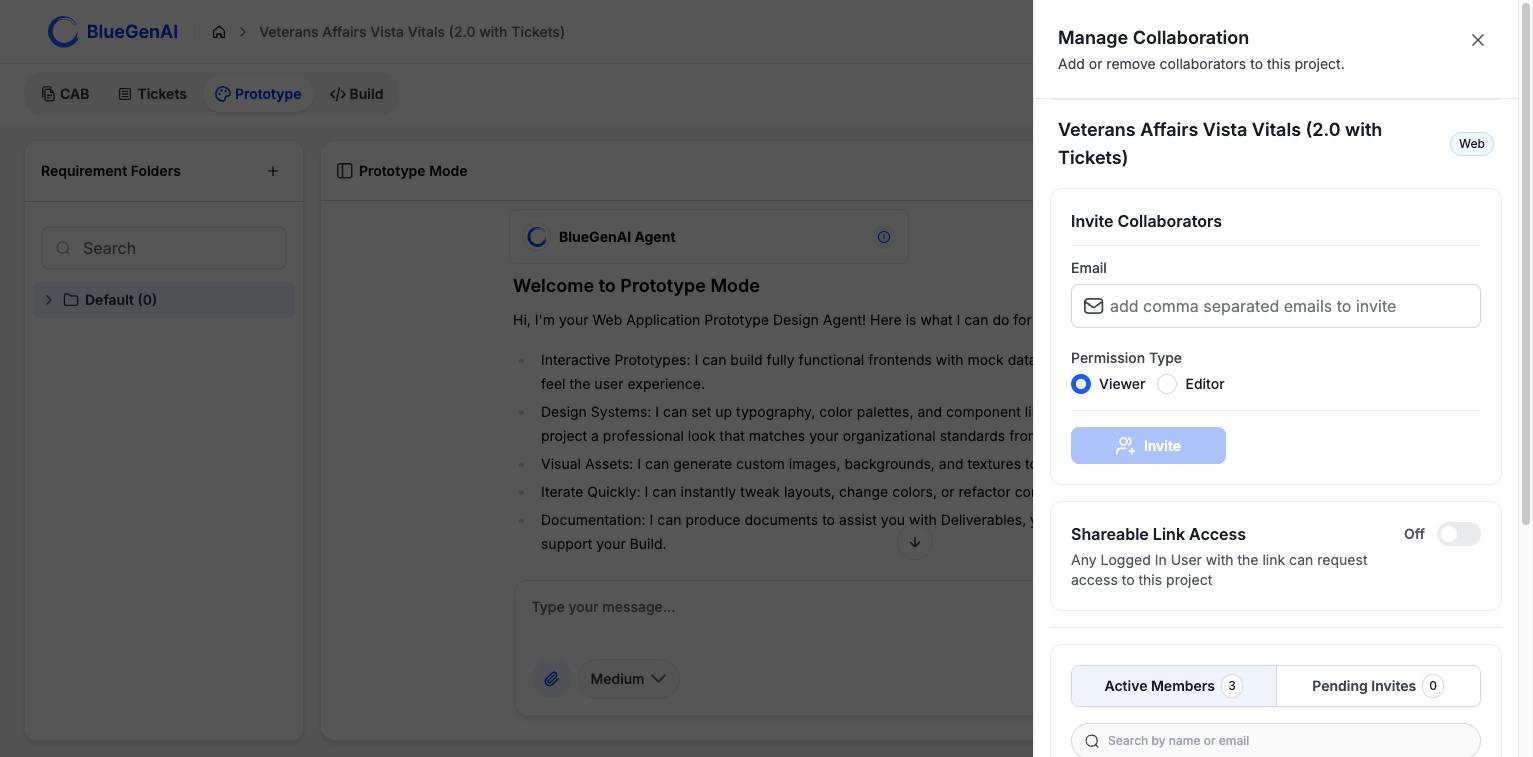 Open **Manage Collaborators** from the panel rail inside a project, or **Manage Collaborations** from a project card on the dashboard. Both open the same drawer.
Enter one or more email addresses, choose **Viewer** or **Editor**, and invite. The invitation arrives by email and appears in the recipient's **Invitations** tab.
Open **Manage Collaborators** from the panel rail inside a project, or **Manage Collaborations** from a project card on the dashboard. Both open the same drawer.
Enter one or more email addresses, choose **Viewer** or **Editor**, and invite. The invitation arrives by email and appears in the recipient's **Invitations** tab.
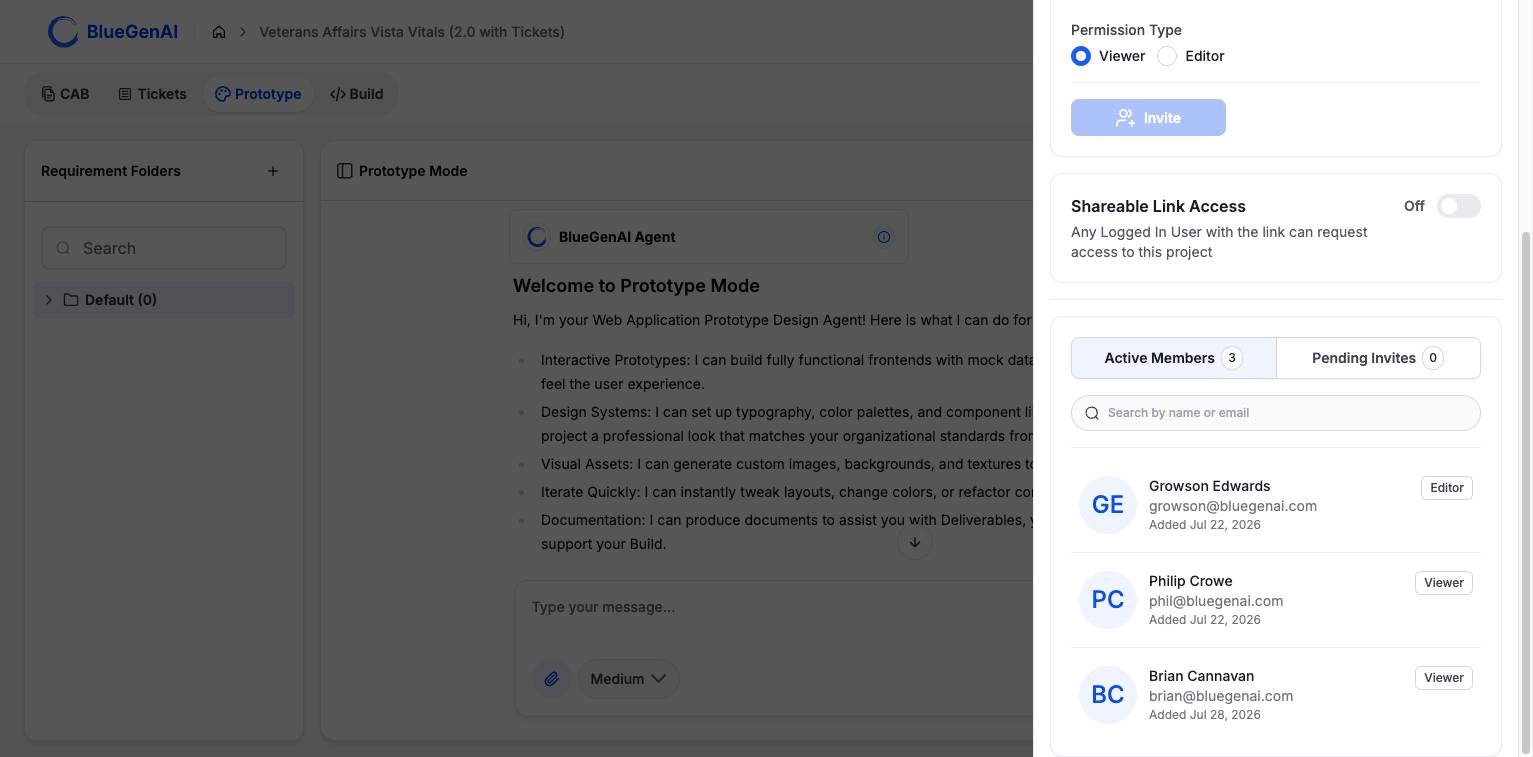 An invitation can be accepted or rejected by the recipient, or withdrawn by you before they respond. Someone who has accepted can later leave, or be removed.
## Who Pays for a Collaborator's Work
**Each collaborator carries a billing preference, set when you invite them.** It decides whose credit balance an agent run draws from: the project owner's, or the collaborator's own.
This matters on a project where several people are prompting the agents. A collaborator set to pay for themselves draws on their own balance; one set to be paid for by the owner draws on the owner's.
## What a Role Changes
Roles are checked wherever an action would alter the project. A Viewer can open the workspace, read the CAB, and look at Tickets; the controls that change things are unavailable to them.
Read-only questions are treated separately from changes, so a collaborator may be able to ask the agent about a codebase on a project where they cannot build.
## Two Ways to Share
These are different mechanisms for different audiences, and confusing them is the easiest mistake to make here.
| | Shareable Link Access | Read-only share links |
| --------------------------------- | --------------------------------------------------------- | --------------------------------------------------------------------- |
| Where you set it | The collaboration drawer, for the whole project | On an individual item: a blueprint, an artifact, a knowledge document |
| Who it is for | Someone with a BlueGenAI account who needs project access | Someone with no account at all |
| What the link does | Lets them **request** access | Opens that one item, read-only |
| Does it grant anything on its own | No, a request still needs approving | Yes, the item is readable immediately |
**Shareable Link Access** is a toggle in the drawer. Any signed-in user holding the link can ask to join the project. Nobody gets in without approval.
**Read-only share links** are per item and need no account. This is how a blueprint reaches a client or a business stakeholder who never uses the platform. See [Editing your CAB](/cab/editing-your-cab).
A read-only share link needs no account and no approval. Anyone holding the URL can read that item. Enable one only where you are content for the content to travel.
## Your Next Step
What a clone brings with it, and what it leaves behind.
How a specification reaches people who are not platform users.
## Related topics
- [Troubleshooting & FAQ](/tips-and-tricks/troubleshooting-faq.md)
- [Common Workflows by Role](/tips-and-tricks/common-workflows-by-role.md)
- [Editing your CAB](/cab/editing-your-cab.md)
- [Weekly release notes](/changelog/weekly-release-notes.md)
- [BlueGenAI Documentation](/index.md)
An invitation can be accepted or rejected by the recipient, or withdrawn by you before they respond. Someone who has accepted can later leave, or be removed.
## Who Pays for a Collaborator's Work
**Each collaborator carries a billing preference, set when you invite them.** It decides whose credit balance an agent run draws from: the project owner's, or the collaborator's own.
This matters on a project where several people are prompting the agents. A collaborator set to pay for themselves draws on their own balance; one set to be paid for by the owner draws on the owner's.
## What a Role Changes
Roles are checked wherever an action would alter the project. A Viewer can open the workspace, read the CAB, and look at Tickets; the controls that change things are unavailable to them.
Read-only questions are treated separately from changes, so a collaborator may be able to ask the agent about a codebase on a project where they cannot build.
## Two Ways to Share
These are different mechanisms for different audiences, and confusing them is the easiest mistake to make here.
| | Shareable Link Access | Read-only share links |
| --------------------------------- | --------------------------------------------------------- | --------------------------------------------------------------------- |
| Where you set it | The collaboration drawer, for the whole project | On an individual item: a blueprint, an artifact, a knowledge document |
| Who it is for | Someone with a BlueGenAI account who needs project access | Someone with no account at all |
| What the link does | Lets them **request** access | Opens that one item, read-only |
| Does it grant anything on its own | No, a request still needs approving | Yes, the item is readable immediately |
**Shareable Link Access** is a toggle in the drawer. Any signed-in user holding the link can ask to join the project. Nobody gets in without approval.
**Read-only share links** are per item and need no account. This is how a blueprint reaches a client or a business stakeholder who never uses the platform. See [Editing your CAB](/cab/editing-your-cab).
A read-only share link needs no account and no approval. Anyone holding the URL can read that item. Enable one only where you are content for the content to travel.
## Your Next Step
What a clone brings with it, and what it leaves behind.
How a specification reaches people who are not platform users.
## Related topics
- [Troubleshooting & FAQ](/tips-and-tricks/troubleshooting-faq.md)
- [Common Workflows by Role](/tips-and-tricks/common-workflows-by-role.md)
- [Editing your CAB](/cab/editing-your-cab.md)
- [Weekly release notes](/changelog/weekly-release-notes.md)
- [BlueGenAI Documentation](/index.md)