> ## Documentation Index
> Fetch the complete documentation index at: https://docs.bluegenai.com/llms.txt
> Use this file to discover all available pages before exploring further.
# Step-by-Step Workflow
> What you set before generating a CAB, the seven phases a run moves through, and how to pause, stop, or resume it.
Generating a CAB takes three decisions from you, then runs through seven phases without further input.
 ## Before You Start
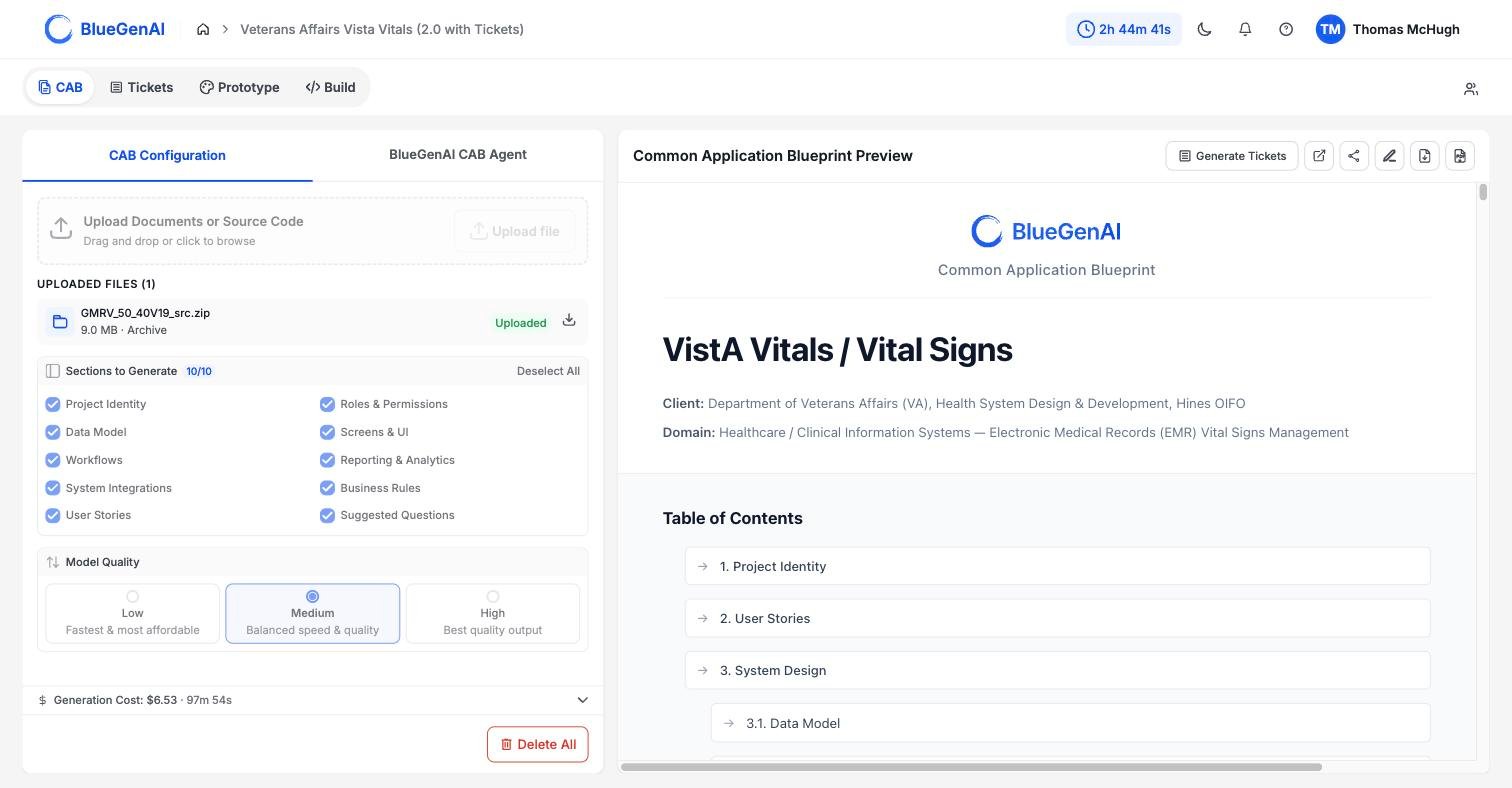
Add the documents, images, or source archive the CAB should read. At least one file is needed before generation can begin.
See [What Goes In?](/cab/supported-input-types) for more information
The **Sections to Generate** checklist offers 10 sections, all selected by default. **Deselect All** clears them, and the counter beside the heading tracks your selection.
Deselecting a section removes it from the finished document. It also narrows what earlier phases look for, because source material is analysed against the sections you asked for.
**It is recommended to leave all sections checked each time**
## Before You Start
Add the documents, images, or source archive the CAB should read. At least one file is needed before generation can begin.
See [What Goes In?](/cab/supported-input-types) for more information
The **Sections to Generate** checklist offers 10 sections, all selected by default. **Deselect All** clears them, and the counter beside the heading tracks your selection.
Deselecting a section removes it from the finished document. It also narrows what earlier phases look for, because source material is analysed against the sections you asked for.
**It is recommended to leave all sections checked each time**
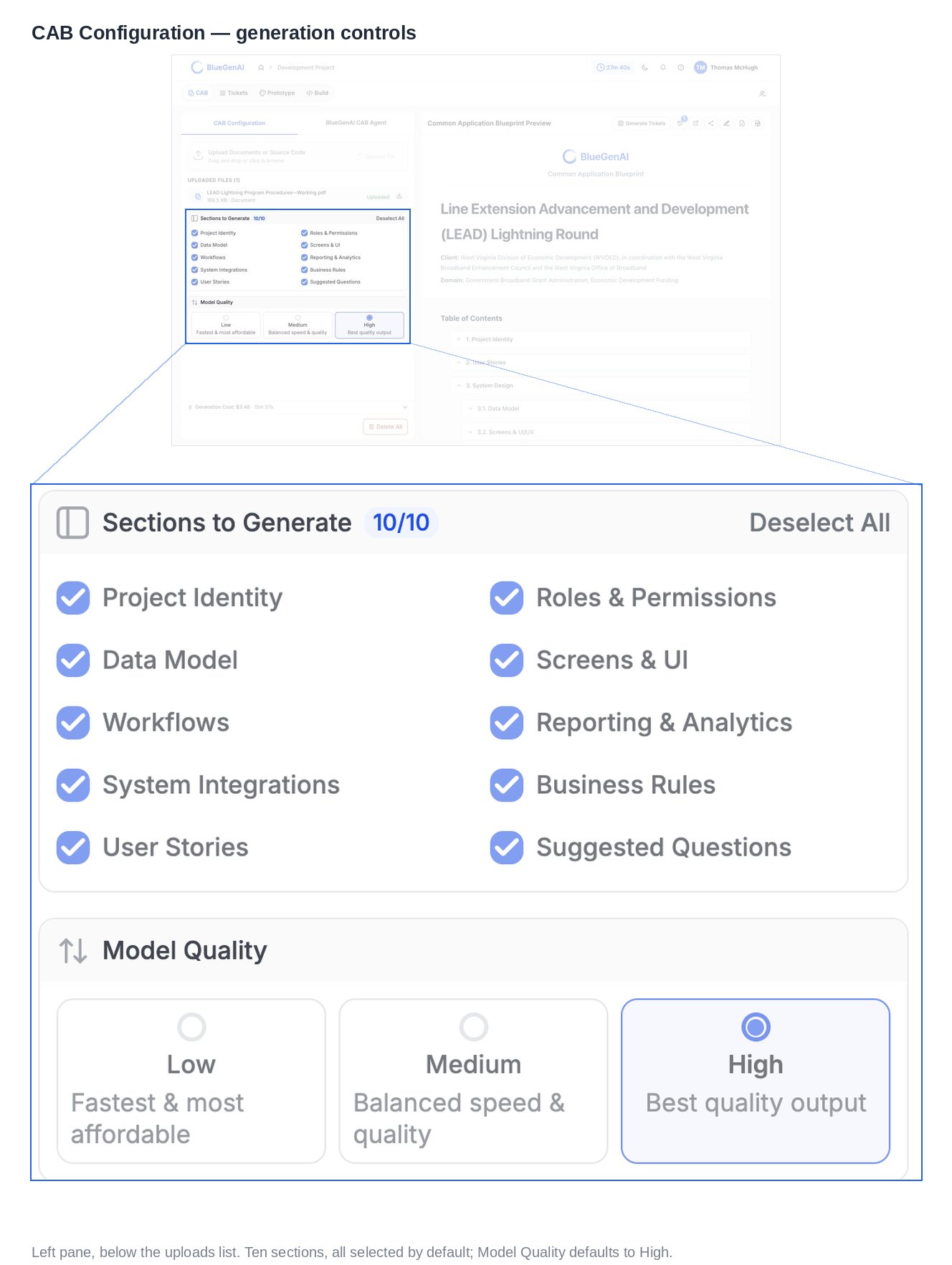 Three options, each with a stated trade-off: **Low** for fastest and most affordable, **Medium** for balanced speed and quality, **High** for best quality output.
This setting applies to the whole run, and it moves both the cost and the elapsed time.
## The Seven Phases
Once you generate, the run moves through these in order. Two are skipped automatically when they have nothing to do.
| # | Phase | What it does | Skipped when |
| - | --------------------- | --------------------------------------------------------------------------------- | ----------------------------------------- |
| 1 | File Processing | Parses documents, extracts archives, and finds the source files inside them | Never |
| 2 | Code Analysis | Reads source files and summarises them in batches | No source code was uploaded |
| 3 | Skeleton Extraction | Pulls a partial outline out of each chunk of input, working on chunks in parallel | Never |
| 4 | Skeleton Merge | Merges those partial outlines into one, section by section | Never |
| 5 | Skeleton Assembly | Assigns the IDs you see in the finished document and saves the outline | Never |
| 6 | Vector Store Indexing | Indexes your material so later phases can retrieve the relevant parts | Your material is below the size threshold |
| 7 | Section Generation | Writes the full detail for each selected section, in batches | Never |
The outline built in phases 3 to 5 is what makes the finished document internally consistent. Roles, entities, and screens are named once during assembly, so every later reference points at the same thing.
## Controls During a Run
A run reports one of six statuses, and the controls change with it.
| Status | What you can do |
| ------------ | --------------------------------------- |
| `idle` | Generate, or delete everything uploaded |
| `processing` | Pause, or stop |
| `paused` | Resume, or stop |
| `completed` | Delete everything and start again |
| `error` | Resume, or delete everything |
| `cancelled` | Generate again, or delete everything |
**Pausing is yours to trigger, not something the run does on its own.** The pause control appears only while a run is processing, and a paused run waits until you resume it. Stopping asks for confirmation first.
Each phase carries its own status as it goes, so a run in progress shows you which phase is active and which are still pending.
## What You Should See
While the run is going, the preview pane reads **Generating Blueprint** and explains that the document appears once generation completes.
When it finishes, the preview fills with the document and the footer reports how long it took.
Elapsed time vary with the volume of source material, the number of sections selected, and the **Model Quality** setting.
## Your Next Step
A finished run gives you a document to read and correct. Knowing what each section is for makes it obvious which parts deserve your attention.
What each of the 10 sections tells you about your application.
How manual edits and AI-suggested changes are reviewed.
## Related topics
- [Weekly release notes](/changelog/weekly-release-notes.md)
- [CAB-to-Ticket conversion](/tickets/cab-to-ticket-conversion.md)
- [Troubleshooting & FAQ](/tips-and-tricks/troubleshooting-faq.md)
- [BlueGenAI Documentation](/index.md)
- [Quick Start Guide](/getting-started/quick-start-guide.md)
Three options, each with a stated trade-off: **Low** for fastest and most affordable, **Medium** for balanced speed and quality, **High** for best quality output.
This setting applies to the whole run, and it moves both the cost and the elapsed time.
## The Seven Phases
Once you generate, the run moves through these in order. Two are skipped automatically when they have nothing to do.
| # | Phase | What it does | Skipped when |
| - | --------------------- | --------------------------------------------------------------------------------- | ----------------------------------------- |
| 1 | File Processing | Parses documents, extracts archives, and finds the source files inside them | Never |
| 2 | Code Analysis | Reads source files and summarises them in batches | No source code was uploaded |
| 3 | Skeleton Extraction | Pulls a partial outline out of each chunk of input, working on chunks in parallel | Never |
| 4 | Skeleton Merge | Merges those partial outlines into one, section by section | Never |
| 5 | Skeleton Assembly | Assigns the IDs you see in the finished document and saves the outline | Never |
| 6 | Vector Store Indexing | Indexes your material so later phases can retrieve the relevant parts | Your material is below the size threshold |
| 7 | Section Generation | Writes the full detail for each selected section, in batches | Never |
The outline built in phases 3 to 5 is what makes the finished document internally consistent. Roles, entities, and screens are named once during assembly, so every later reference points at the same thing.
## Controls During a Run
A run reports one of six statuses, and the controls change with it.
| Status | What you can do |
| ------------ | --------------------------------------- |
| `idle` | Generate, or delete everything uploaded |
| `processing` | Pause, or stop |
| `paused` | Resume, or stop |
| `completed` | Delete everything and start again |
| `error` | Resume, or delete everything |
| `cancelled` | Generate again, or delete everything |
**Pausing is yours to trigger, not something the run does on its own.** The pause control appears only while a run is processing, and a paused run waits until you resume it. Stopping asks for confirmation first.
Each phase carries its own status as it goes, so a run in progress shows you which phase is active and which are still pending.
## What You Should See
While the run is going, the preview pane reads **Generating Blueprint** and explains that the document appears once generation completes.
When it finishes, the preview fills with the document and the footer reports how long it took.
Elapsed time vary with the volume of source material, the number of sections selected, and the **Model Quality** setting.
## Your Next Step
A finished run gives you a document to read and correct. Knowing what each section is for makes it obvious which parts deserve your attention.
What each of the 10 sections tells you about your application.
How manual edits and AI-suggested changes are reviewed.
## Related topics
- [Weekly release notes](/changelog/weekly-release-notes.md)
- [CAB-to-Ticket conversion](/tickets/cab-to-ticket-conversion.md)
- [Troubleshooting & FAQ](/tips-and-tricks/troubleshooting-faq.md)
- [BlueGenAI Documentation](/index.md)
- [Quick Start Guide](/getting-started/quick-start-guide.md)