> ## Documentation Index
> Fetch the complete documentation index at: https://docs.bluegenai.com/llms.txt
> Use this file to discover all available pages before exploring further.
# Navigation & UI Guide
> Learn how the platform is laid out: the project dashboard, project workspaces, the four primary modes, and how to use the side panels.
The platform landing page is a dashboard listing your projects. Selecting a project opens into that project's workspace.
## The Dashboard Landing Page
Upon signing into BlueGenAI you will land at your Projects Dashboard page.
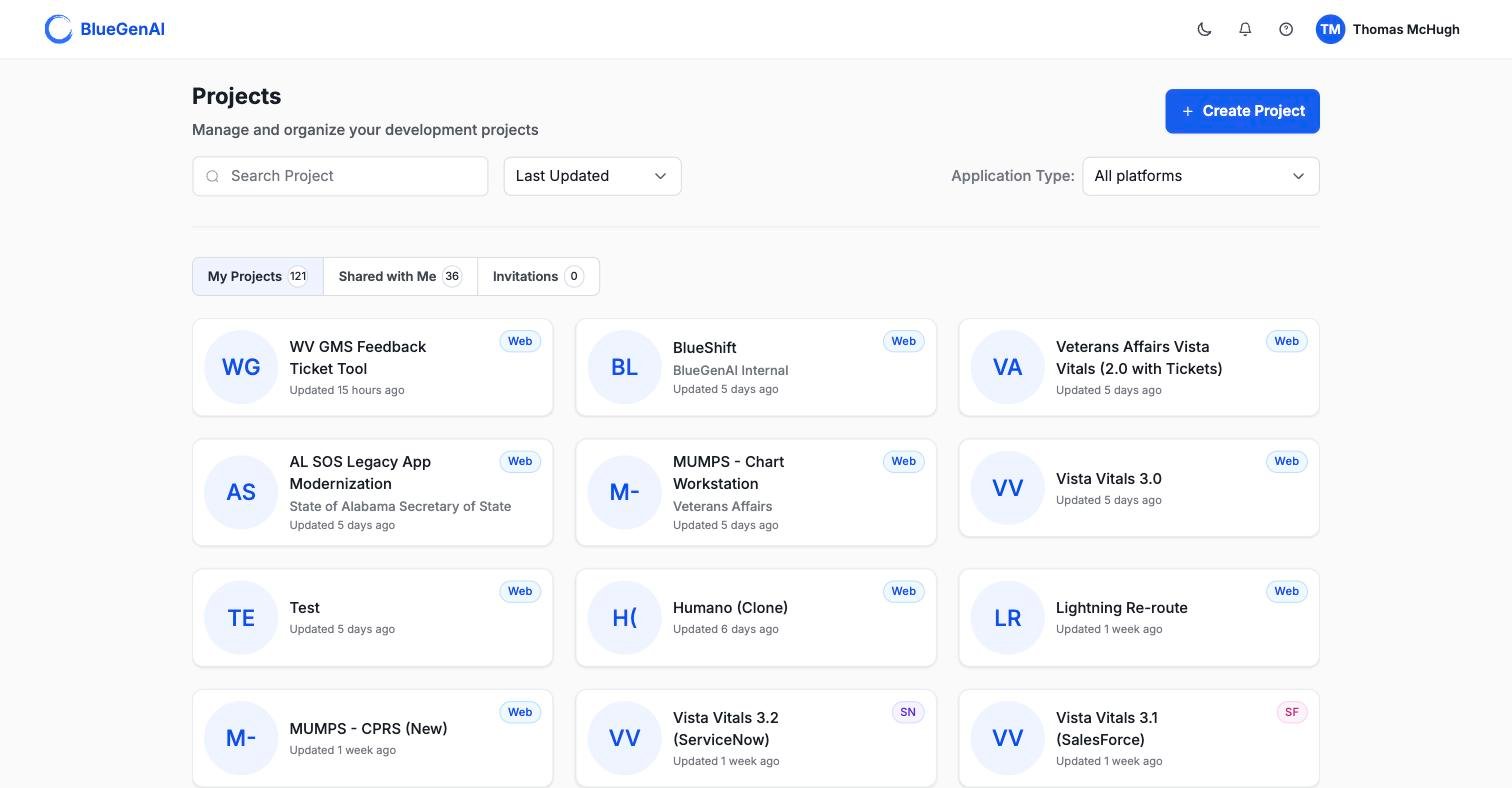 Your Projects Dashboard has three tabs: **My Projects**, **Shared with Me**, and **Invitations**. You may also Search by name, sort your projects, or filter the list by Application type.
**My Projects** will list all of the projects which you have created. You are the owner of these projects and the primary manager of each of them.
**Shared with Me** shows projects which you have access to. This means that the project owner has added you via the [Collaboration Mode](https://docs.bluegenai.com/admin-platform/collaboration-features). Your access rights and permissions for each project may vary according to the owner's settings.
**Invitations** displays any project to which you have been added but have not yet accepted. Once accepted here, the project will no longer show on Invitations and will instead show on the *Shared with Me* tab
Each card shows the project name, an optional client label, when it was last updated, and a badge naming the technology platform for that application: `Web`, `TAP`, `SN`, or `SF`. Hovering a card reveals a menu with **Open**, **Edit**, **Clone**, **Manage Collaborations**, and **Delete**.
> **The BlueGenAI Platform currently supports 5 technology stacks:**
>
> **Web** - Web Application
>
> **TAP** - Tyler Application Platform
>
> **SN** - ServiceNow
>
> **SF** - Salesforce
>
> **PA** - Microsoft PowerApps
## Your Project Workspace
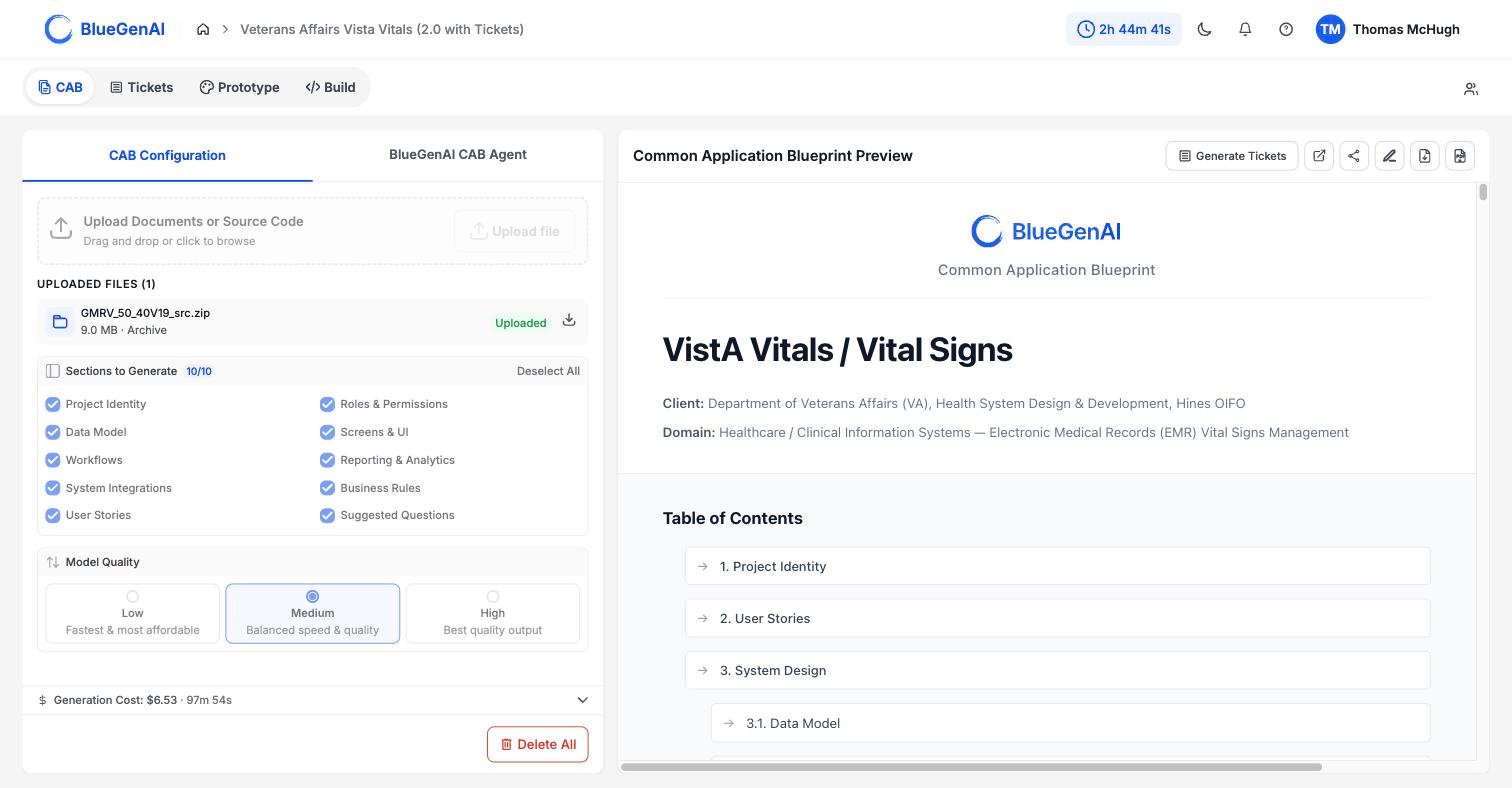
Opening a project takes you to its workspace. *Note that Web projects and low-code projects may have slightly different workspaces.* For all projects your initial project landing space will be the CAB (Common Application Blueprint.) From here you can navigate throughout the project's available modes.
Your Projects Dashboard has three tabs: **My Projects**, **Shared with Me**, and **Invitations**. You may also Search by name, sort your projects, or filter the list by Application type.
**My Projects** will list all of the projects which you have created. You are the owner of these projects and the primary manager of each of them.
**Shared with Me** shows projects which you have access to. This means that the project owner has added you via the [Collaboration Mode](https://docs.bluegenai.com/admin-platform/collaboration-features). Your access rights and permissions for each project may vary according to the owner's settings.
**Invitations** displays any project to which you have been added but have not yet accepted. Once accepted here, the project will no longer show on Invitations and will instead show on the *Shared with Me* tab
Each card shows the project name, an optional client label, when it was last updated, and a badge naming the technology platform for that application: `Web`, `TAP`, `SN`, or `SF`. Hovering a card reveals a menu with **Open**, **Edit**, **Clone**, **Manage Collaborations**, and **Delete**.
> **The BlueGenAI Platform currently supports 5 technology stacks:**
>
> **Web** - Web Application
>
> **TAP** - Tyler Application Platform
>
> **SN** - ServiceNow
>
> **SF** - Salesforce
>
> **PA** - Microsoft PowerApps
## Your Project Workspace
Opening a project takes you to its workspace. *Note that Web projects and low-code projects may have slightly different workspaces.* For all projects your initial project landing space will be the CAB (Common Application Blueprint.) From here you can navigate throughout the project's available modes.
 ## The Four Modes
The Project workspace has four modes\*, selected from the tabs at the top left. Selecting these pill icons allows you to access the rest of the application workspaces.
Note that some application types will not include Prototype mode.
## The Four Modes
The Project workspace has four modes\*, selected from the tabs at the top left. Selecting these pill icons allows you to access the rest of the application workspaces.
Note that some application types will not include Prototype mode.
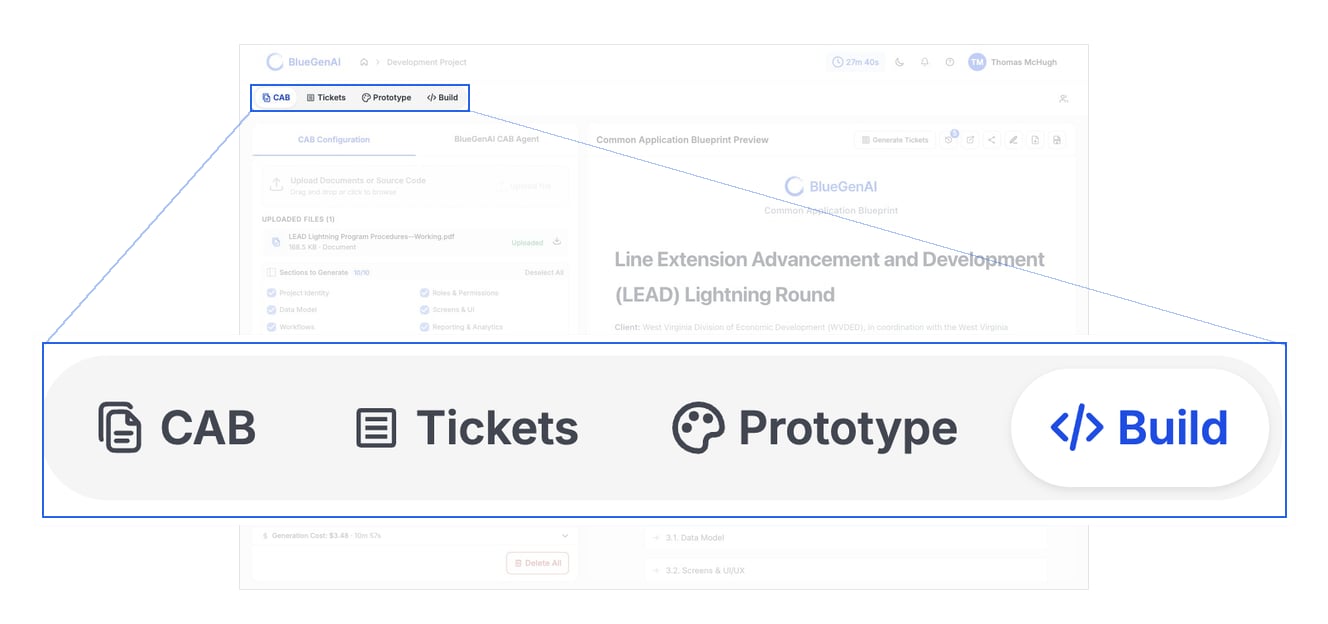 | Mode | What you do there |
| ------------- | ---------------------------------------------------------------------------------------------------- |
| **CAB** | Generate and correct the specification your project is built from - the Common Application Blueprint |
| **Tickets** | Break that specification into units of work and order them |
| **Prototype** | Mock up a front end to look at and click through |
| **Build** | Build the real application, with data behind it |
**These are modes, not pages.** Switching mode changes the whole workspace, and what tools are available to you. Your place in each mode is remembered when you come back.
## The Panel Rail
The icons at the top right open panels beside your work and will change depending on the Mode.
| Mode | What you do there |
| ------------- | ---------------------------------------------------------------------------------------------------- |
| **CAB** | Generate and correct the specification your project is built from - the Common Application Blueprint |
| **Tickets** | Break that specification into units of work and order them |
| **Prototype** | Mock up a front end to look at and click through |
| **Build** | Build the real application, with data behind it |
**These are modes, not pages.** Switching mode changes the whole workspace, and what tools are available to you. Your place in each mode is remembered when you come back.
## The Panel Rail
The icons at the top right open panels beside your work and will change depending on the Mode.
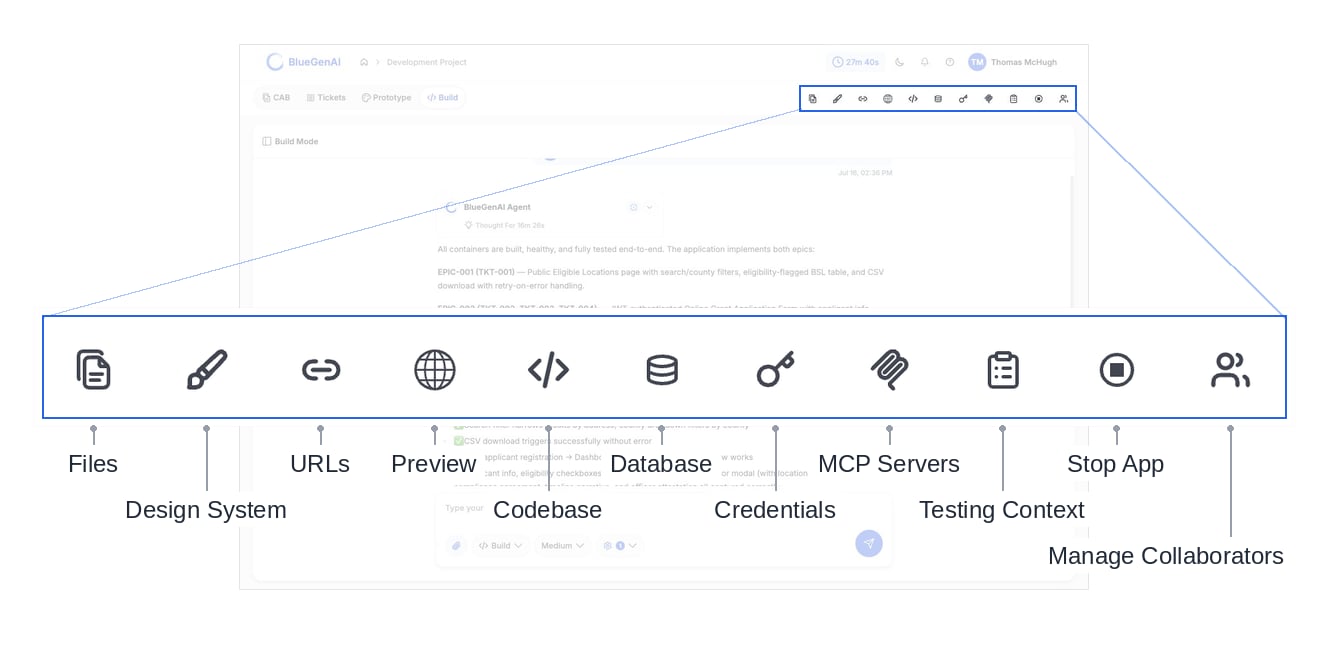 You may Hover over any of the icons for about a second to see its name and function.
## The Top Bar
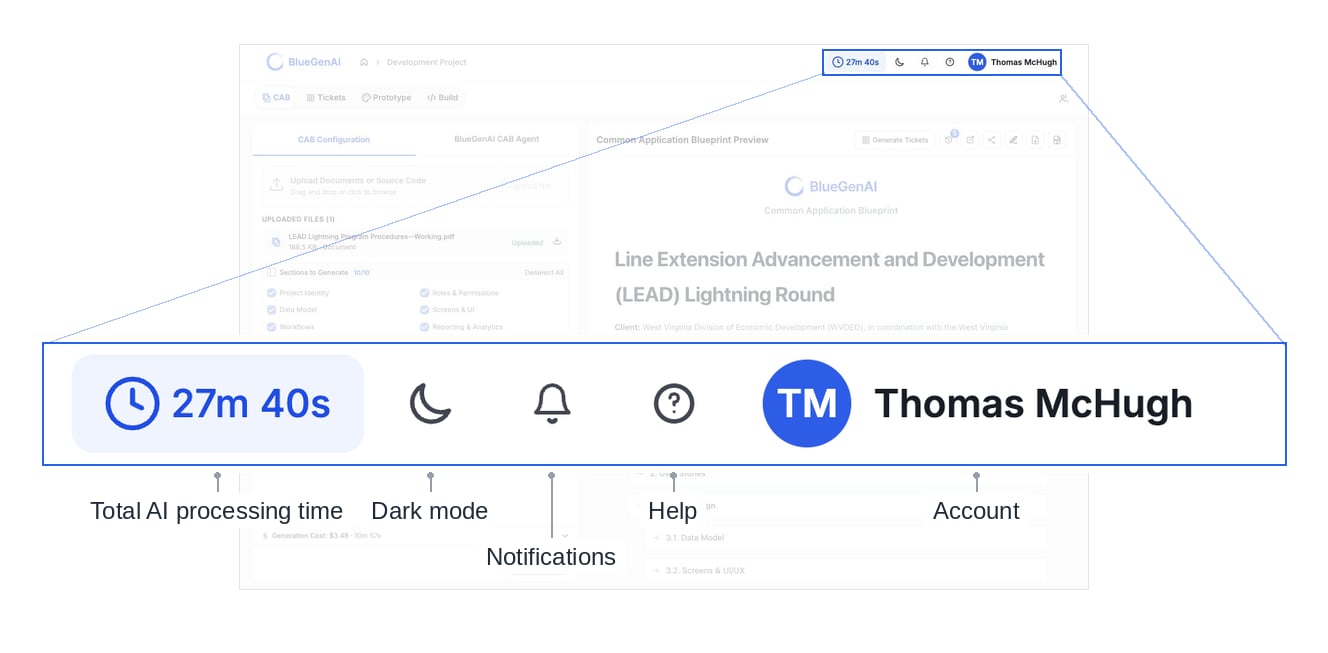
The top bar carries a dark-mode toggle, a notifications bell, a help link, and your account menu. A breadcrumb to the left shows which project you are in, with a home icon back to the dashboard.
It also carries a counter. **The Counter is the total AI processing time accumulated on this project:** the sum of every agent operation ever run against it. It is not a clock on your current session, and it does not reset. It advances whenever an agent does work, including blueprint generation, change-impact review, and builds.
You may Hover over any of the icons for about a second to see its name and function.
## The Top Bar
The top bar carries a dark-mode toggle, a notifications bell, a help link, and your account menu. A breadcrumb to the left shows which project you are in, with a home icon back to the dashboard.
It also carries a counter. **The Counter is the total AI processing time accumulated on this project:** the sum of every agent operation ever run against it. It is not a clock on your current session, and it does not reset. It advances whenever an agent does work, including blueprint generation, change-impact review, and builds.
 ## Your Next Step
The fastest way to learn the layout is to move through it once.
Requirements to deployed application, in one pass.
Roles, invitations, and the two kinds of sharing.
## Related topics
- [BlueGenAI Documentation](/index.md)
- [Legacy Code Translation Guide](/cab/legacy-code-translation-guide.md)
- [Deployment Guide](/web-apps/build-mode/deployment-guide.md)
- [Build Agent Guide](/web-apps/build-mode/build-agent-guide.md)
- [Quick Start Guide](/getting-started/quick-start-guide.md)
## Your Next Step
The fastest way to learn the layout is to move through it once.
Requirements to deployed application, in one pass.
Roles, invitations, and the two kinds of sharing.
## Related topics
- [BlueGenAI Documentation](/index.md)
- [Legacy Code Translation Guide](/cab/legacy-code-translation-guide.md)
- [Deployment Guide](/web-apps/build-mode/deployment-guide.md)
- [Build Agent Guide](/web-apps/build-mode/build-agent-guide.md)
- [Quick Start Guide](/getting-started/quick-start-guide.md)