> ## Documentation Index
> Fetch the complete documentation index at: https://docs.bluegenai.com/llms.txt
> Use this file to discover all available pages before exploring further.
# Collaboration & Sharing
> How to invite collaborators, manage team access, and share your project with others.
BlueGenAI is designed for team-based delivery. You can invite collaborators to any project, assign permissions that control what they can do, and share your project with others using a shareable link.
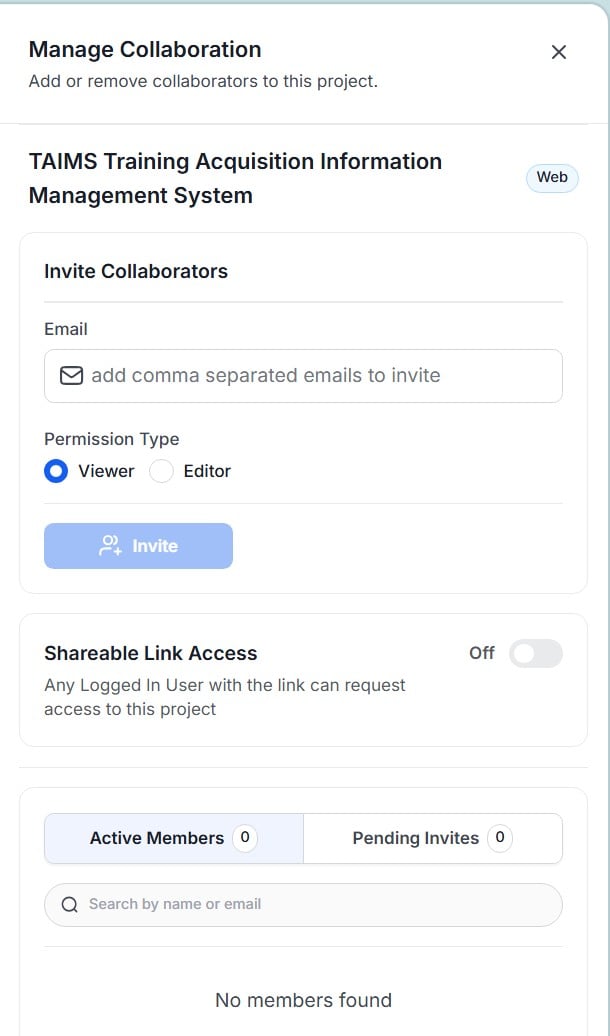
All collaboration settings are managed from the **Manage Collaboration** panel. Access it by clicking the **👤 collaboration icon** in the top-right corner of any project workspace.
***
## How to invite a collaborator
1. Open your project and click the **👤 collaboration icon** in the top-right corner
2. The **Manage Collaboration** panel opens
3. Enter one or more email addresses in the **Email** field — separate multiple addresses with commas
4. Select a **Permission Type** — Viewer or Editor
5. Click **Invite**
6. The invitee receives a notification and appears in the **Pending Invites** tab
Invitees must have a BlueGenAI account. If they do not have one yet, they can sign up when they receive the invitation.
***
## Understanding permission types
When inviting a collaborator you assign one of two permission types:
| Permission Type | What they can do |
| --------------- | --------------------------------------------------------------- |
| **Viewer** | Read-only access — can view the project but cannot make changes |
| **Editor** | Can contribute to the project — design, build, and iterate |
The project creator is automatically the Owner. Owner permissions — including the ability to delete the project, manage collaboration settings, and configure billing — are not assignable when inviting collaborators.
***
## How to manage active members and pending invites
The bottom section of the Manage Collaboration panel shows two tabs:
| Tab | What it shows |
| ------------------- | ------------------------------------------------------------------------- |
| **Active Members** | Collaborators who have accepted their invitation — shown with a count |
| **Pending Invites** | Invitations that have been sent but not yet accepted — shown with a count |
Use the **Search by name or email** field to find a specific member or pending invite.
***
## How to share your project with a link
Shareable Link Access allows any logged-in BlueGenAI user with the link to request access to your project.
1. Open the **Manage Collaboration** panel
2. Find the **Shareable Link Access** section
3. Click the toggle to turn it **On**
4. A shareable URL appears — click the copy icon to copy it
5. Share the URL with anyone who needs access
6. Recipients must be logged in to BlueGenAI to use the link
 Turn off the Shareable Link Access toggle when reviews are complete. Leave it enabled only while access is actively needed.
When you are done sharing, return to the Manage Collaboration panel and turn the toggle **Off**. The link becomes inactive immediately — anyone who tries to use it will no longer be able to request access.
Turn off the Shareable Link Access toggle when reviews are complete. Leave it enabled only while access is actively needed.
When you are done sharing, return to the Manage Collaboration panel and turn the toggle **Off**. The link becomes inactive immediately — anyone who tries to use it will no longer be able to request access.
 ***
## How real-time collaboration works
When multiple team members are working on the same project simultaneously:
* All connected sessions see messages and build progress in real time
* When one collaborator sends a prompt, all connected team members see it immediately
* If one person starts a build, everyone in the project sees the progress and results
* All work is saved to the project — collaborators see the latest state whenever they open it
***
## Related pages
Understand how credit usage is tracked across collaborators.
Manage projects and access collaboration settings from the dashboard.
***
## How real-time collaboration works
When multiple team members are working on the same project simultaneously:
* All connected sessions see messages and build progress in real time
* When one collaborator sends a prompt, all connected team members see it immediately
* If one person starts a build, everyone in the project sees the progress and results
* All work is saved to the project — collaborators see the latest state whenever they open it
***
## Related pages
Understand how credit usage is tracked across collaborators.
Manage projects and access collaboration settings from the dashboard.