> ## Documentation Index
> Fetch the complete documentation index at: https://docs.bluegenai.com/llms.txt
> Use this file to discover all available pages before exploring further.
# The Home Screen & Projects
> How to log in, navigate the project dashboard, and create and manage your projects in BlueGenAI.
When you log in to BlueGenAI, you land on the Projects dashboard. This is your home base — where you create new projects, open existing ones, manage collaboration, and track your token usage.
***
## How to log in
1. Go to [BlueGenAI.ai](https://bluegenai.ai)
2. Enter your **Email** address
3. Enter your **Password**
4. Optionally check **Remember me** to stay logged in on this device
5. Complete the Cloudflare verification if prompted
6. Click **Sign In**
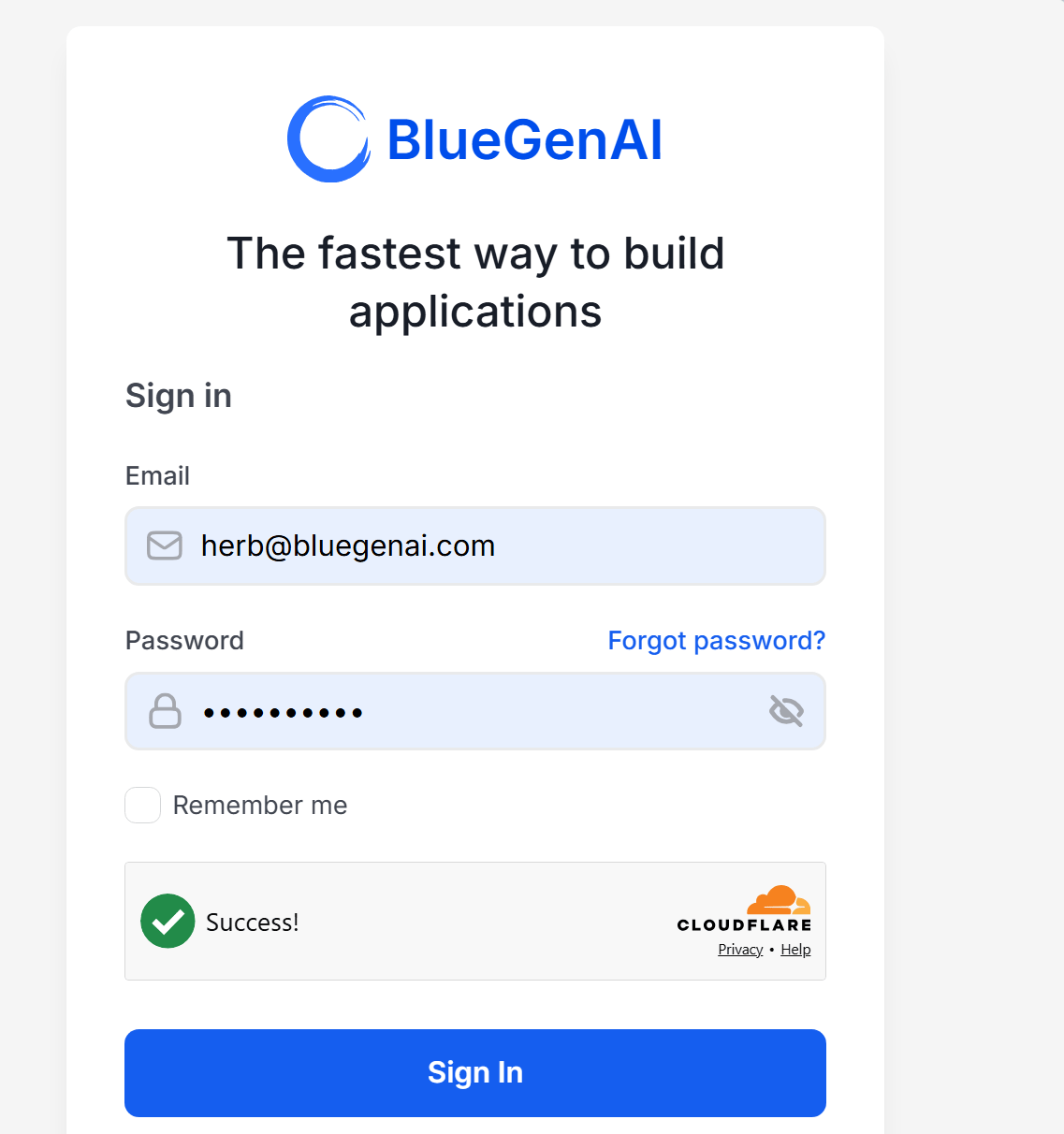 If you have forgotten your password, click **Forgot password?** next to the Password field and follow the reset instructions sent to your email.
***
## How to navigate the Projects dashboard
Once logged in you land on the Projects dashboard. The dashboard is organized into three areas: the header, the filters and search bar, and the project tabs.
If you have forgotten your password, click **Forgot password?** next to the Password field and follow the reset instructions sent to your email.
***
## How to navigate the Projects dashboard
Once logged in you land on the Projects dashboard. The dashboard is organized into three areas: the header, the filters and search bar, and the project tabs.
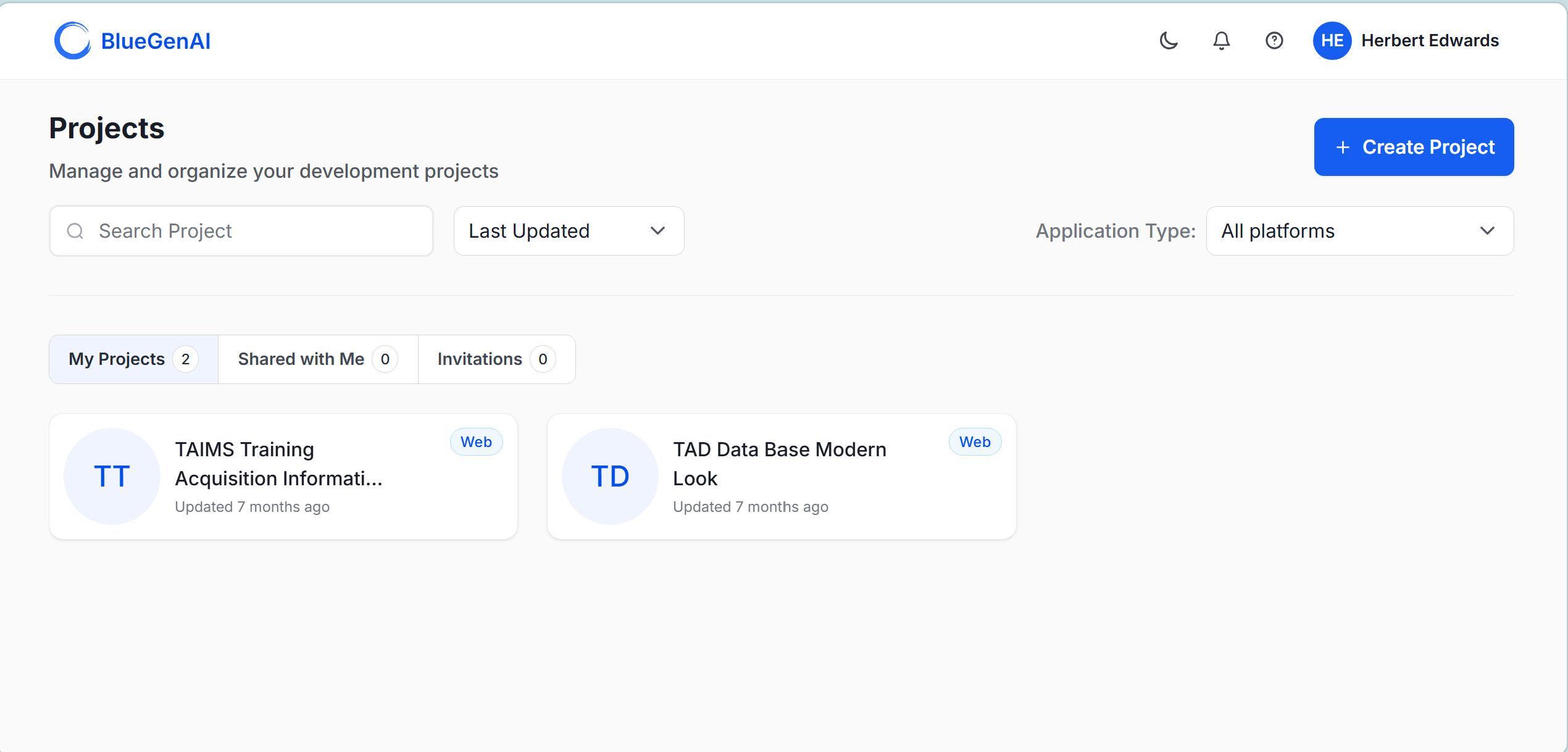 ### Header
| Element | What it does |
| ------------------------- | ---------------------------------------------------------------------------- |
| **BlueGenAI logo** | Returns you to the Projects dashboard from anywhere in the platform |
| **Dark mode toggle** (🌙) | Switches between light and dark mode |
| **Notifications** (🔔) | Shows platform notifications and alerts |
| **Help** (?) | Opens help and support options |
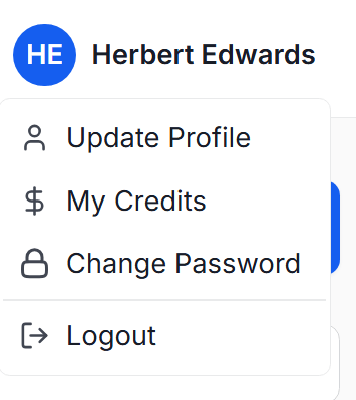
| **User avatar** | Access account options — Update Profile, My Credits, Change Password, Logout |
### Header
| Element | What it does |
| ------------------------- | ---------------------------------------------------------------------------- |
| **BlueGenAI logo** | Returns you to the Projects dashboard from anywhere in the platform |
| **Dark mode toggle** (🌙) | Switches between light and dark mode |
| **Notifications** (🔔) | Shows platform notifications and alerts |
| **Help** (?) | Opens help and support options |
| **User avatar** | Access account options — Update Profile, My Credits, Change Password, Logout |
 ### Search, sort, and filter
| Control | What it does |
| -------------------- | ----------------------------------------------------------------------- |
| **Search Project** | Search across your projects by name |
| **Last Updated** | Sort projects by last updated date |
| **Application Type** | Filter projects by platform type — All platforms, Web, Low-Code, Hybrid |
### Project tabs
| Tab | What it shows |
| ------------------ | ---------------------------------------------------------------------------- |
| **My Projects** | Projects you have created — shown with a count |
| **Shared with Me** | Projects other users have invited you to collaborate on — shown with a count |
| **Invitations** | Pending project invitations you have not yet accepted — shown with a count |
### Project cards
Each project appears as a card showing:
* **Initials avatar** — auto-generated from the project name
* **Project name** — truncated if long
* **Application type badge** — Web, Low-Code, or Hybrid
* **Last updated** — when the project was last modified
***
## How to create a new project
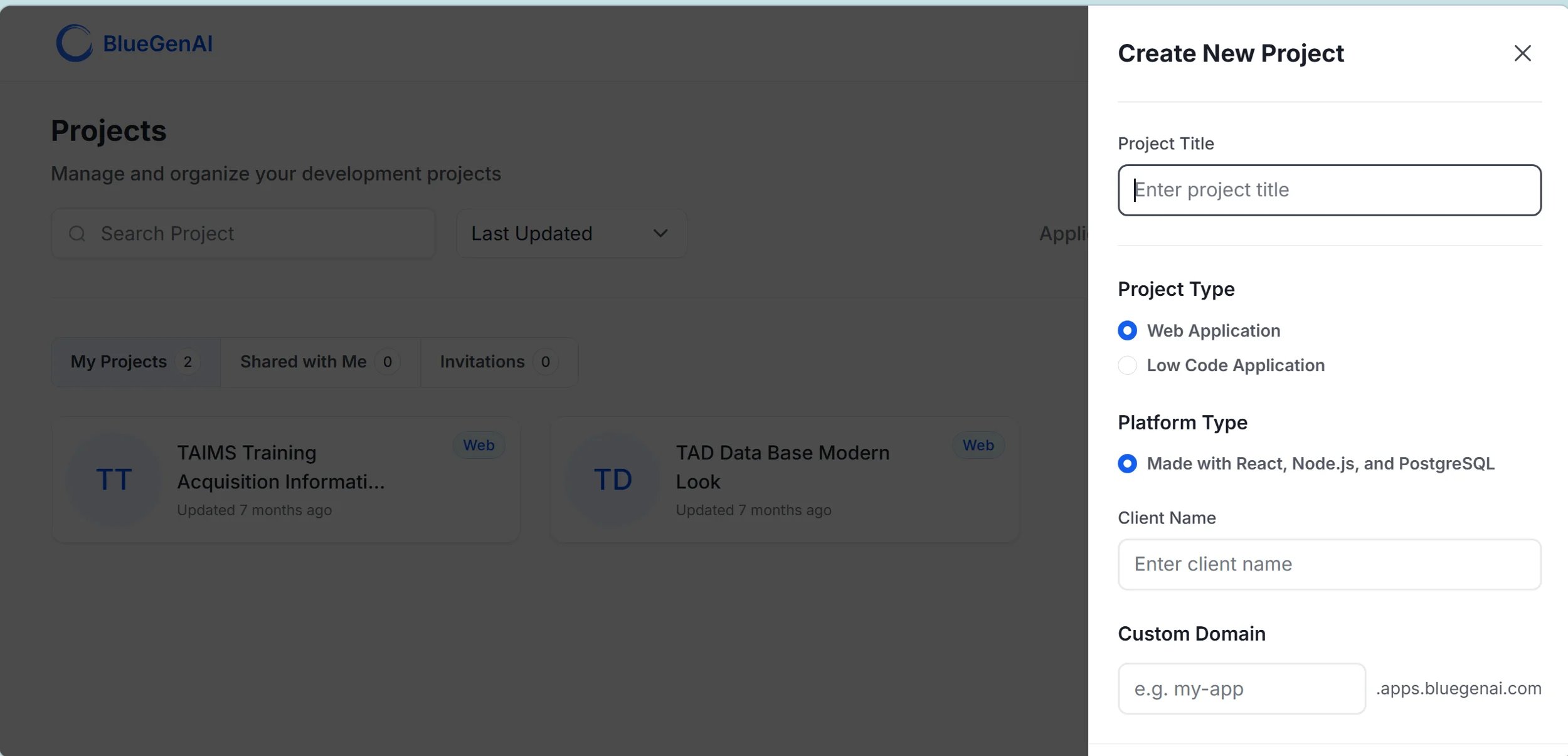
1. Click the **+ Create Project** button in the top-right corner of the dashboard
2. Enter a project title — there are no restrictions on naming
3. Select a Project Type — Web Application or Low Code Application
4. Optionally add a client name and custom domain
5. Click **Create** — your project opens in the workspace
### Search, sort, and filter
| Control | What it does |
| -------------------- | ----------------------------------------------------------------------- |
| **Search Project** | Search across your projects by name |
| **Last Updated** | Sort projects by last updated date |
| **Application Type** | Filter projects by platform type — All platforms, Web, Low-Code, Hybrid |
### Project tabs
| Tab | What it shows |
| ------------------ | ---------------------------------------------------------------------------- |
| **My Projects** | Projects you have created — shown with a count |
| **Shared with Me** | Projects other users have invited you to collaborate on — shown with a count |
| **Invitations** | Pending project invitations you have not yet accepted — shown with a count |
### Project cards
Each project appears as a card showing:
* **Initials avatar** — auto-generated from the project name
* **Project name** — truncated if long
* **Application type badge** — Web, Low-Code, or Hybrid
* **Last updated** — when the project was last modified
***
## How to create a new project
1. Click the **+ Create Project** button in the top-right corner of the dashboard
2. Enter a project title — there are no restrictions on naming
3. Select a Project Type — Web Application or Low Code Application
4. Optionally add a client name and custom domain
5. Click **Create** — your project opens in the workspace
 ***
## How to open an existing project
1. From the **My Projects** tab, locate the project card
2. Click the card — the project opens in the mode it was last used
***
## How to find a project shared with you
1. Click the **Shared with Me** tab
2. Projects shared by other users appear here
3. Click any card to open the project — your access level depends on the role you were assigned
***
## How to accept a project invitation
1. Click the **Invitations** tab
2. Pending invitations appear here with a count badge
3. Click an invitation to review and accept or decline
***
## How to delete a project
Only the project Owner can delete a project.
1. Locate the project card on the **My Projects** tab
2. Click the **more options menu** (⋯) on the project card
3. Select **Delete Project**
4. Confirm the deletion
Deleting a project is permanent. All project files, design artifacts, build history, and collaboration settings are removed. This action cannot be undone.
***
## Understanding project roles
When you create a project you are automatically its Owner. When you invite others they are assigned one of three roles:
| Role | What they can do |
| ---------- | -------------------------------------------------------------------------------- |
| **Owner** | Full control — edit, manage collaboration, configure billing, delete the project |
| **Editor** | Contribute to design and build; invite additional collaborators |
| **Viewer** | Read-only access for review and feedback |
For full details on inviting collaborators and managing access see [Collaboration & Sharing](/platform-overview/collaboration-and-sharing).
***
## Ready to start building?
Follow a step-by-step walkthrough to design, build, and deploy your first application.
Learn your way around the BlueGenAI workspace, toolbar, and tools.
***
## How to open an existing project
1. From the **My Projects** tab, locate the project card
2. Click the card — the project opens in the mode it was last used
***
## How to find a project shared with you
1. Click the **Shared with Me** tab
2. Projects shared by other users appear here
3. Click any card to open the project — your access level depends on the role you were assigned
***
## How to accept a project invitation
1. Click the **Invitations** tab
2. Pending invitations appear here with a count badge
3. Click an invitation to review and accept or decline
***
## How to delete a project
Only the project Owner can delete a project.
1. Locate the project card on the **My Projects** tab
2. Click the **more options menu** (⋯) on the project card
3. Select **Delete Project**
4. Confirm the deletion
Deleting a project is permanent. All project files, design artifacts, build history, and collaboration settings are removed. This action cannot be undone.
***
## Understanding project roles
When you create a project you are automatically its Owner. When you invite others they are assigned one of three roles:
| Role | What they can do |
| ---------- | -------------------------------------------------------------------------------- |
| **Owner** | Full control — edit, manage collaboration, configure billing, delete the project |
| **Editor** | Contribute to design and build; invite additional collaborators |
| **Viewer** | Read-only access for review and feedback |
For full details on inviting collaborators and managing access see [Collaboration & Sharing](/platform-overview/collaboration-and-sharing).
***
## Ready to start building?
Follow a step-by-step walkthrough to design, build, and deploy your first application.
Learn your way around the BlueGenAI workspace, toolbar, and tools.