> ## Documentation Index
> Fetch the complete documentation index at: https://docs.bluegenai.com/llms.txt
> Use this file to discover all available pages before exploring further.
# Deployment Guide
> Where your built application lives, why the URL format differs between projects, and how to start and stop it.
A finished build runs on the platform and is reachable at a URL the agent gives you.
## Finding Your Application
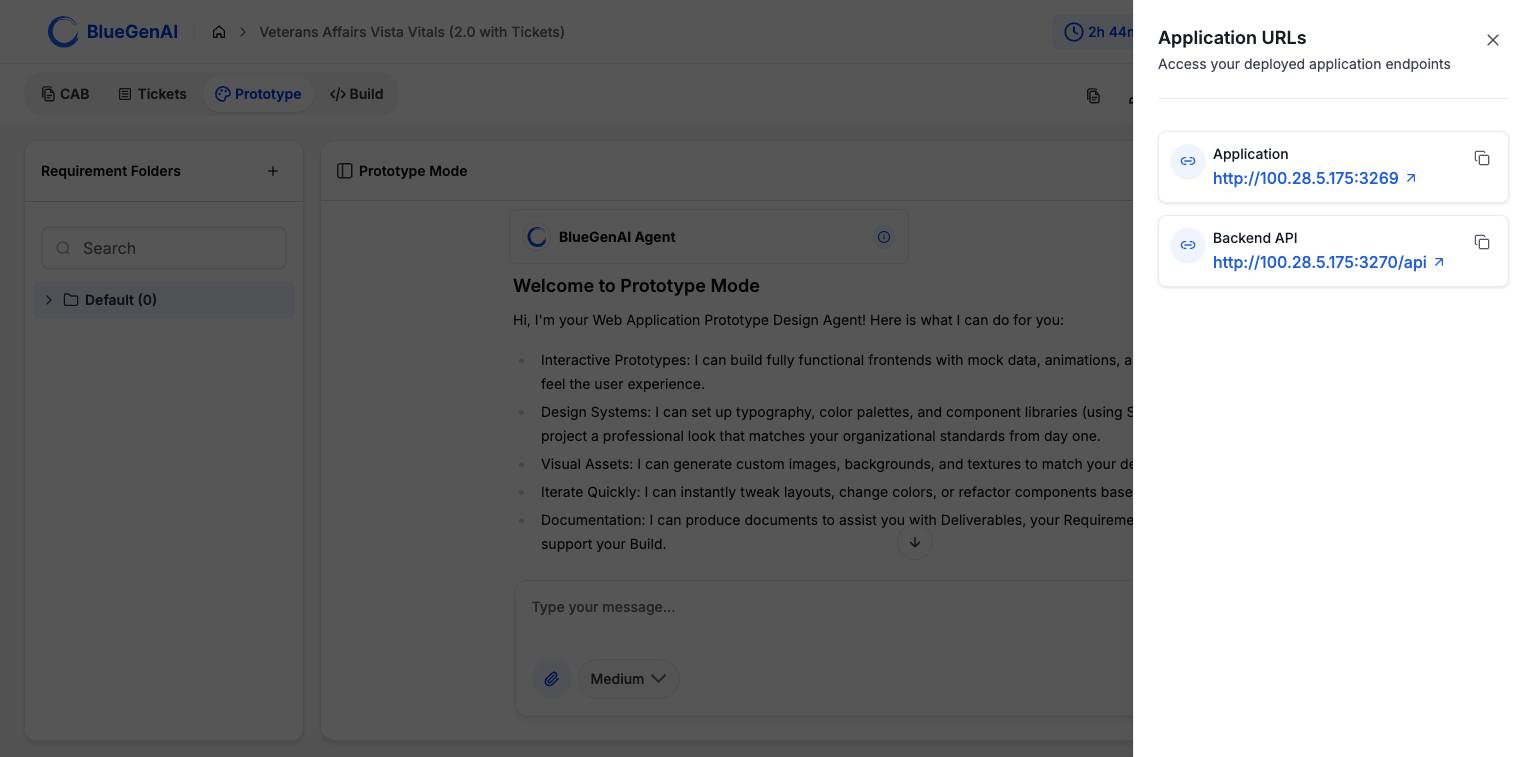
The agent includes the URLs in its reply when a build finishes. You can reopen them any time from **URLs** in the panel rail.
 ## Why the URL Format Differs
**Projects come in two architectures, and each produces a different kind of URL.** Which one you have depends on when the project was created.
| | Version 1 (original) | Version 2 (gateway) |
| ------------ | ----------------------------------------------------- | -------------------------------------- |
| What you get | One URL per service | A single URL for the whole application |
| Typical form | `http://:` and `http://:/api` | A subdomain address |
| Panel shows | **Application** and **Backend API** | **Application** only |
New projects are created at version 2 and get the single subdomain address. Older projects keep the direct host-and-port form and are not migrated. The panel above is a version 1 project, which is why it lists two entries.
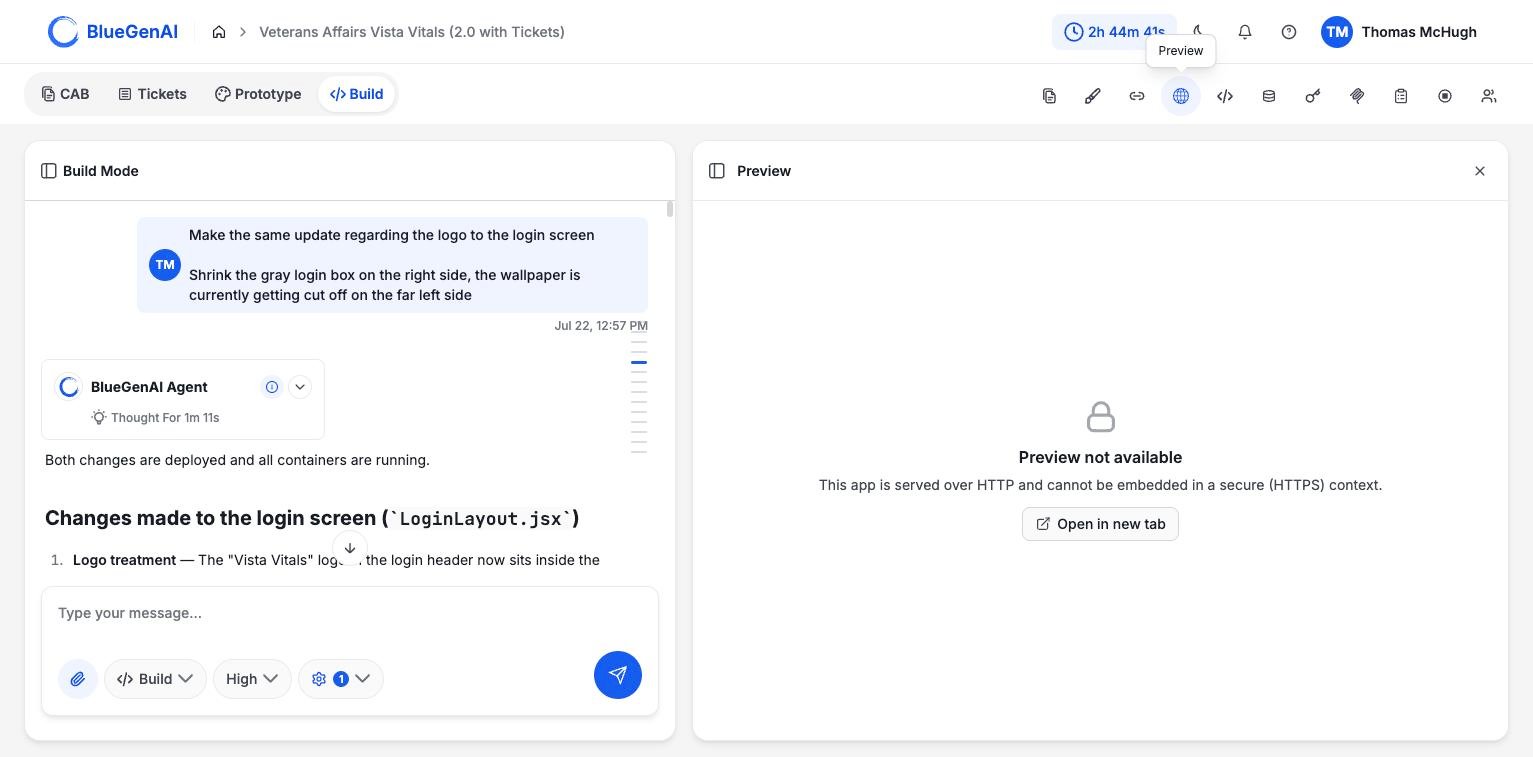
Version 1 applications are served over plain HTTP. That is why the **Preview** panel cannot embed them and offers **Open in new tab** instead.
## Why the URL Format Differs
**Projects come in two architectures, and each produces a different kind of URL.** Which one you have depends on when the project was created.
| | Version 1 (original) | Version 2 (gateway) |
| ------------ | ----------------------------------------------------- | -------------------------------------- |
| What you get | One URL per service | A single URL for the whole application |
| Typical form | `http://:` and `http://:/api` | A subdomain address |
| Panel shows | **Application** and **Backend API** | **Application** only |
New projects are created at version 2 and get the single subdomain address. Older projects keep the direct host-and-port form and are not migrated. The panel above is a version 1 project, which is why it lists two entries.
Version 1 applications are served over plain HTTP. That is why the **Preview** panel cannot embed them and offers **Open in new tab** instead.
 ## Custom Domains
A project can be given a custom domain in place of the generated address. Your chosen name becomes a subdomain of `apps.bluegenai.ai`.
The name has to be lowercase letters, numbers, and hyphens only, at most 63 characters, and it cannot look like a system identifier.
Custom domains are available on Web projects that are recent enough to use the gateway architecture.
## Starting and Stopping
Applications can be stopped to free resources and started again from the panel rail. **Stop App** sits among the panel controls in both Prototype and Build.
Two messages tell you the application is not ready rather than broken:
| Message | What it means |
| -------------------------------------------------------- | --------------------------------------------------------------- |
| `Project has no working directory. Generate code first.` | Nothing has been built yet |
| `No docker-compose file found in the project directory.` | A build exists but is missing the file describing how to run it |
After starting, give the health checks a moment before retrying the URL.
## What You Should See
Opening the application URL loads your built application. On a version 1 project the second entry, labelled **Backend API**, addresses the same application directly, which is useful when you want to check one part of it in isolation.
## Your Next Step
With the application running, the next question is usually what is inside it.
Browsing the codebase and querying the database.
How the agent tests your application in a browser.
## Related topics
- [Troubleshooting & FAQ](/tips-and-tricks/troubleshooting-faq.md)
- [Workflow](/web-apps/build-mode/workflow.md)
- [Codebase and Database view](/web-apps/codebase-and-database.md)
- [Platform Overview & Architecture](/getting-started/platform-overview-architecture.md)
- [BlueGenAI Documentation](/index.md)
## Custom Domains
A project can be given a custom domain in place of the generated address. Your chosen name becomes a subdomain of `apps.bluegenai.ai`.
The name has to be lowercase letters, numbers, and hyphens only, at most 63 characters, and it cannot look like a system identifier.
Custom domains are available on Web projects that are recent enough to use the gateway architecture.
## Starting and Stopping
Applications can be stopped to free resources and started again from the panel rail. **Stop App** sits among the panel controls in both Prototype and Build.
Two messages tell you the application is not ready rather than broken:
| Message | What it means |
| -------------------------------------------------------- | --------------------------------------------------------------- |
| `Project has no working directory. Generate code first.` | Nothing has been built yet |
| `No docker-compose file found in the project directory.` | A build exists but is missing the file describing how to run it |
After starting, give the health checks a moment before retrying the URL.
## What You Should See
Opening the application URL loads your built application. On a version 1 project the second entry, labelled **Backend API**, addresses the same application directly, which is useful when you want to check one part of it in isolation.
## Your Next Step
With the application running, the next question is usually what is inside it.
Browsing the codebase and querying the database.
How the agent tests your application in a browser.
## Related topics
- [Troubleshooting & FAQ](/tips-and-tricks/troubleshooting-faq.md)
- [Workflow](/web-apps/build-mode/workflow.md)
- [Codebase and Database view](/web-apps/codebase-and-database.md)
- [Platform Overview & Architecture](/getting-started/platform-overview-architecture.md)
- [BlueGenAI Documentation](/index.md)