> ## Documentation Index
> Fetch the complete documentation index at: https://docs.bluegenai.com/llms.txt
> Use this file to discover all available pages before exploring further.
# Overview
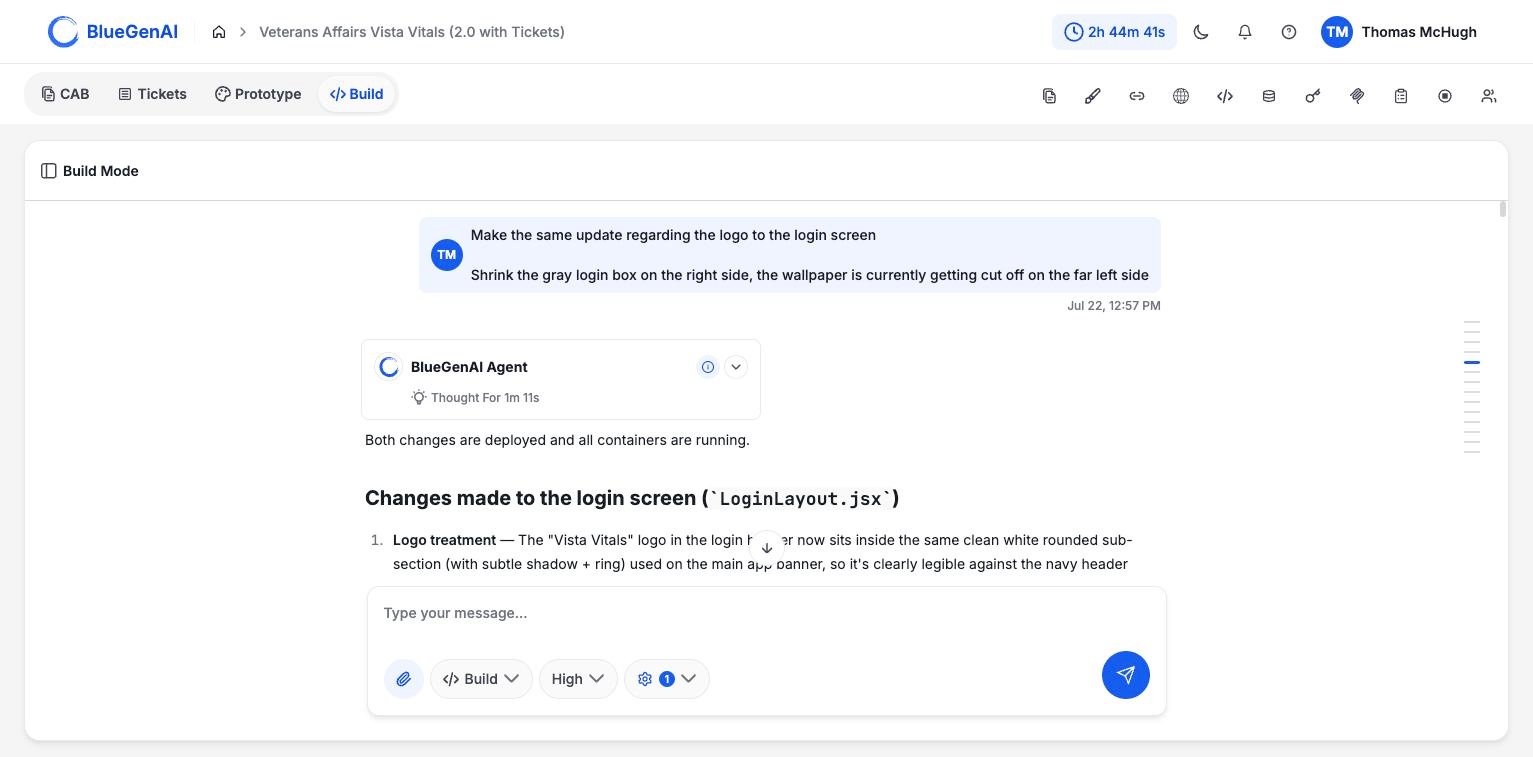
> Build Mode turns your requirements into a running application with a database behind it, through a conversation with the build agent.
 ## How It Differs from Prototype Mode
[Prototype Mode](/web-apps/prototype-mode/overview) mocks up a front end using primarily html and with no infrastructure behind it. Build Mode builds the real thing: front end, backend, database, and everything needed to run and connect them.
A prototype can be modified in seconds, making it useful to support requirement sessions or design discussions. A build takes longer because it requires substantive edits to a full application.
**Build Mode starts a fresh conversation.** It does not inherit your Prototype Mode chat history, and it does not pick up your Design System either. Anything from prototyping that should influence the build has to be attached to your prompt. See [Output Handoff](/web-apps/prototype-mode/output-handoff).
## The Panel Rail
The icons at the top right open panels beside your work. **Ten in Prototype Mode, eleven in Build**, which adds Testing Context.
## How It Differs from Prototype Mode
[Prototype Mode](/web-apps/prototype-mode/overview) mocks up a front end using primarily html and with no infrastructure behind it. Build Mode builds the real thing: front end, backend, database, and everything needed to run and connect them.
A prototype can be modified in seconds, making it useful to support requirement sessions or design discussions. A build takes longer because it requires substantive edits to a full application.
**Build Mode starts a fresh conversation.** It does not inherit your Prototype Mode chat history, and it does not pick up your Design System either. Anything from prototyping that should influence the build has to be attached to your prompt. See [Output Handoff](/web-apps/prototype-mode/output-handoff).
## The Panel Rail
The icons at the top right open panels beside your work. **Ten in Prototype Mode, eleven in Build**, which adds Testing Context.
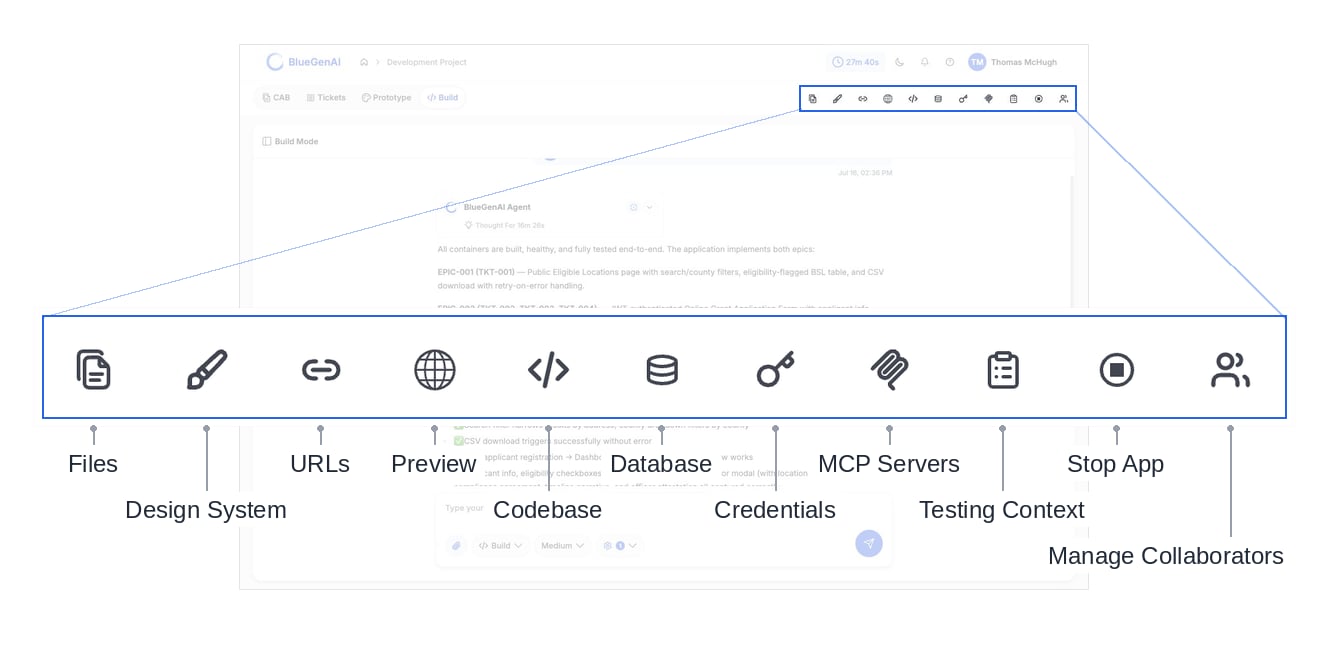 | Panel | What it holds |
| :------------------- | :----------------------------------------------------- |
| Files | Everything uploaded to or generated by the project |
| Design System | Colours, type, and spacing for generated prototypes |
| URLs | Your running application's addresses |
| Preview | The running application, embedded |
| Codebase | The generated source, and the version-control controls |
| Database | The application's data, browsable and queryable |
| Credentials | Keys the agent has asked you for |
| MCP Servers | External tools connected to the build agent |
| Testing Context | What the testing agent should know (**Build only**) |
| Stop App | Stops the running application |
| Manage Collaborators | Invitations and sharing |
Hover one any of the icons to see its label.
## Two Ways of Talking to the Agent
Inside Build Mode the agent chat box carries its own selector with two options, and the distinction matters.
| Composer option | What it does |
| --------------- | ------------------------------------------------------- |
| **Build** | Creates, edits, and ships changes to your codebase |
| **Ask** | Answers questions about your codebase, changing nothing |
**Build is the default.** Ask is a read-only sub-mode you switch to when you want to understand something rather than change it.
"Build" is the name of both the mode tab and the composer's default option.
They are not the same control: the tab decides which workspace you are in, and the composer decides what the agent does with your next message.
Throughout this documentation, **Build Mode** means the workspace and the composer's **Build option** means the selector.
The difference is enforced rather than advisory. In Ask, the agent is given only tools that read; it cannot write a file or run a command even if you ask it to. See [Ask Mode](/web-apps/ask-mode).
| Panel | What it holds |
| :------------------- | :----------------------------------------------------- |
| Files | Everything uploaded to or generated by the project |
| Design System | Colours, type, and spacing for generated prototypes |
| URLs | Your running application's addresses |
| Preview | The running application, embedded |
| Codebase | The generated source, and the version-control controls |
| Database | The application's data, browsable and queryable |
| Credentials | Keys the agent has asked you for |
| MCP Servers | External tools connected to the build agent |
| Testing Context | What the testing agent should know (**Build only**) |
| Stop App | Stops the running application |
| Manage Collaborators | Invitations and sharing |
Hover one any of the icons to see its label.
## Two Ways of Talking to the Agent
Inside Build Mode the agent chat box carries its own selector with two options, and the distinction matters.
| Composer option | What it does |
| --------------- | ------------------------------------------------------- |
| **Build** | Creates, edits, and ships changes to your codebase |
| **Ask** | Answers questions about your codebase, changing nothing |
**Build is the default.** Ask is a read-only sub-mode you switch to when you want to understand something rather than change it.
"Build" is the name of both the mode tab and the composer's default option.
They are not the same control: the tab decides which workspace you are in, and the composer decides what the agent does with your next message.
Throughout this documentation, **Build Mode** means the workspace and the composer's **Build option** means the selector.
The difference is enforced rather than advisory. In Ask, the agent is given only tools that read; it cannot write a file or run a command even if you ask it to. See [Ask Mode](/web-apps/ask-mode).
 ## Choosing a Quality Setting
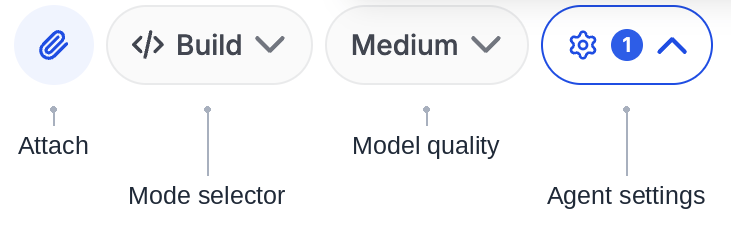
Beside the composer's mode selector sits a quality selector offering **Medium** and **High**.
Build offers two settings in a **MODEL SELECTION** drop down. This selection is un-related to the model selection in the ***CAB mode***
## When to Use Build
* **The requirements are settled enough to build against.** Tickets, a corrected blueprint, or a ready concept you can manage manually.
* **You need a comprehensive prototype.** When you want to explore a thorough and detailed prototype with actual and real foundational architecture.
* **You need something people can use or which can be shared.** A build will be a full application and hosted with a URL you can share with stakeholders.
## When Not To
* **You are still deciding what to make.** If you are still Refining your CAB, Iterating mockups in Prototype Mode, or reviewing and adding tickets - you may want to wait to initiate your Build.
* **You only want to understand existing code.** Use the composer's Ask option, which changes nothing.
## Your Next Step
A build starts with a prompt, and what happens next is worth knowing before you send one.
What happens after you send a build prompt.
Its tools, its rules, and the limits it works within.
## Related topics
- [Overview](/web-apps/prototype-mode/overview.md)
## Choosing a Quality Setting
Beside the composer's mode selector sits a quality selector offering **Medium** and **High**.
Build offers two settings in a **MODEL SELECTION** drop down. This selection is un-related to the model selection in the ***CAB mode***
## When to Use Build
* **The requirements are settled enough to build against.** Tickets, a corrected blueprint, or a ready concept you can manage manually.
* **You need a comprehensive prototype.** When you want to explore a thorough and detailed prototype with actual and real foundational architecture.
* **You need something people can use or which can be shared.** A build will be a full application and hosted with a URL you can share with stakeholders.
## When Not To
* **You are still deciding what to make.** If you are still Refining your CAB, Iterating mockups in Prototype Mode, or reviewing and adding tickets - you may want to wait to initiate your Build.
* **You only want to understand existing code.** Use the composer's Ask option, which changes nothing.
## Your Next Step
A build starts with a prompt, and what happens next is worth knowing before you send one.
What happens after you send a build prompt.
Its tools, its rules, and the limits it works within.
## Related topics
- [Overview](/web-apps/prototype-mode/overview.md)