> ## Documentation Index
> Fetch the complete documentation index at: https://docs.bluegenai.com/llms.txt
> Use this file to discover all available pages before exploring further.
# Files
> The project's file store: what you upload, what the platform generates, and what you can do with each.
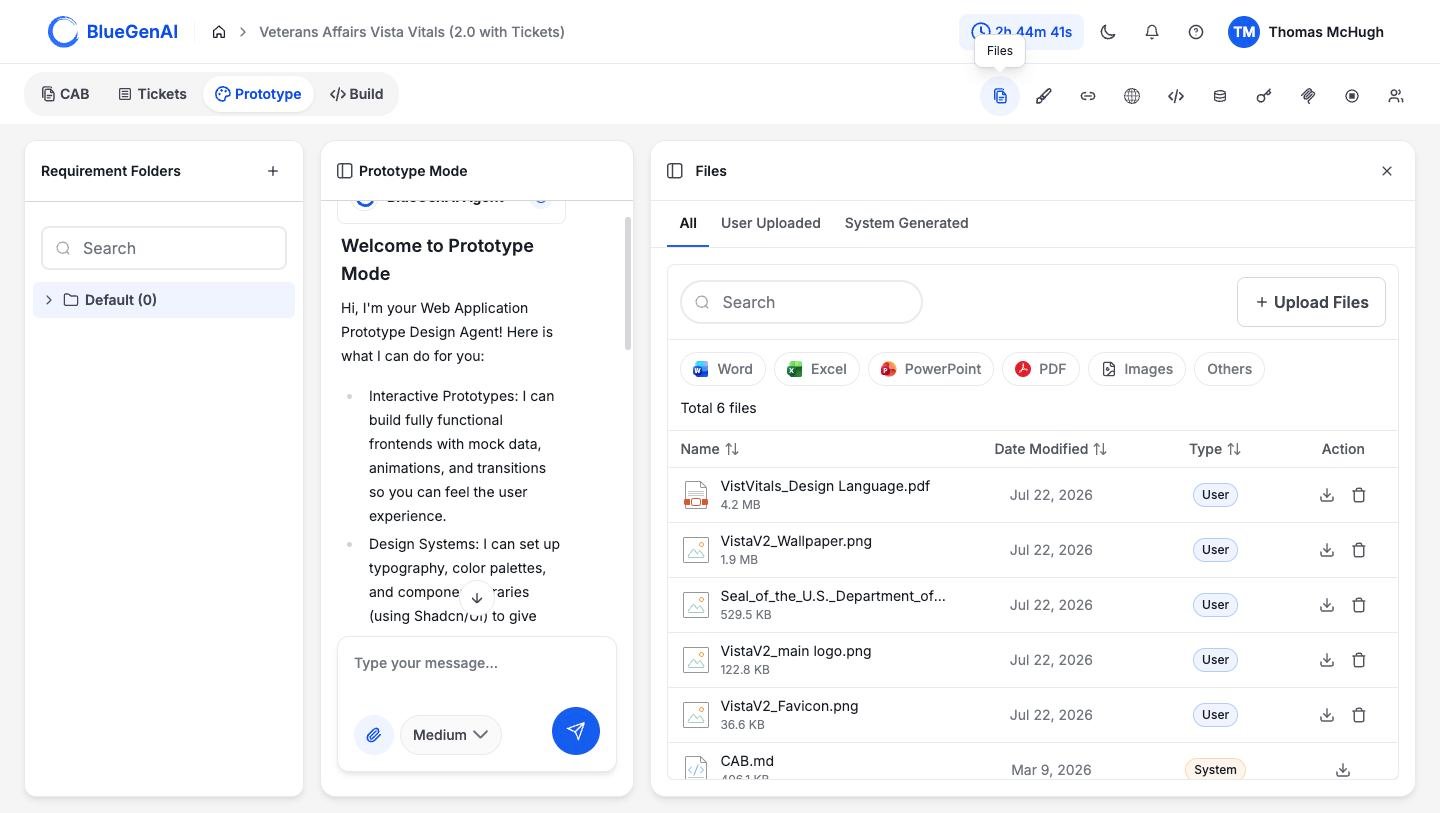
**Files** holds everything attached to your project, split by whether you put it there or the platform did.
 ## Two Kinds of File
| Tab | What it holds | What you can do |
| -------------------- | ----------------------------------------------------------------------------------- | ------------------ |
| **User Uploaded** | Anything you added: reference documents, brand guides, screenshots, source archives | Download or delete |
| **System Generated** | Anything the platform produced, including the blueprint as `CAB.md` | Download only |
**System files cannot be deleted from this panel.** They are outputs of something else, so removing them here would leave the thing that produced them out of step. Each row carries a badge repeating its category, so the distinction is visible in the combined **All** view too.
## Adding Files
**Upload Files** adds to the project. You can also attach files directly to a prompt with the paperclip in the composer, and those attachments land here too.
Uploads accept images and documents:
| Kind | Accepted |
| --------- | --------------------------------------------------------------------------------------- |
| Images | `.png` `.jpg` `.jpeg` `.gif` `.webp` `.svg` |
| Documents | `.pdf` `.doc` `.docx` `.ppt` `.pptx` `.txt` `.md` `.json` `.csv` `.xls` `.xlsx` `.html` |
Images are capped at 2 MB. Filenames are capped at 200 characters.
## Finding Things
Search by name, or narrow by type using the chips: **Word**, **Excel**, **PowerPoint**, **PDF**, **Images**, and **Others**. The list sorts by name, date modified, or type, and a count above it reports the total.
## Why This Panel Matters
**Files are how work moves between modes.** Build Mode does not inherit your Prototype conversation, so anything that should influence a build has to be attached to a prompt, and this is where you find it again. See [Output Handoff](/web-apps/prototype-mode/output-handoff).
It is also where generated documents accumulate. A blueprint written in the CAB workspace appears here as `CAB.md`, available to attach to a build prompt like any other file.
## Your Next Step
Files feed prompts. What the agent does with them is the next thing worth knowing.
How context reaches the agent.
Saving output so it survives the switch to Build.
## Related topics
- [Troubleshooting & FAQ](/tips-and-tricks/troubleshooting-faq.md)
- [Legacy Code Translation Guide](/cab/legacy-code-translation-guide.md)
- [Weekly release notes](/changelog/weekly-release-notes.md)
- [Ask Mode](/web-apps/ask-mode.md)
- [Credentials](/web-apps/credentials.md)
## Two Kinds of File
| Tab | What it holds | What you can do |
| -------------------- | ----------------------------------------------------------------------------------- | ------------------ |
| **User Uploaded** | Anything you added: reference documents, brand guides, screenshots, source archives | Download or delete |
| **System Generated** | Anything the platform produced, including the blueprint as `CAB.md` | Download only |
**System files cannot be deleted from this panel.** They are outputs of something else, so removing them here would leave the thing that produced them out of step. Each row carries a badge repeating its category, so the distinction is visible in the combined **All** view too.
## Adding Files
**Upload Files** adds to the project. You can also attach files directly to a prompt with the paperclip in the composer, and those attachments land here too.
Uploads accept images and documents:
| Kind | Accepted |
| --------- | --------------------------------------------------------------------------------------- |
| Images | `.png` `.jpg` `.jpeg` `.gif` `.webp` `.svg` |
| Documents | `.pdf` `.doc` `.docx` `.ppt` `.pptx` `.txt` `.md` `.json` `.csv` `.xls` `.xlsx` `.html` |
Images are capped at 2 MB. Filenames are capped at 200 characters.
## Finding Things
Search by name, or narrow by type using the chips: **Word**, **Excel**, **PowerPoint**, **PDF**, **Images**, and **Others**. The list sorts by name, date modified, or type, and a count above it reports the total.
## Why This Panel Matters
**Files are how work moves between modes.** Build Mode does not inherit your Prototype conversation, so anything that should influence a build has to be attached to a prompt, and this is where you find it again. See [Output Handoff](/web-apps/prototype-mode/output-handoff).
It is also where generated documents accumulate. A blueprint written in the CAB workspace appears here as `CAB.md`, available to attach to a build prompt like any other file.
## Your Next Step
Files feed prompts. What the agent does with them is the next thing worth knowing.
How context reaches the agent.
Saving output so it survives the switch to Build.
## Related topics
- [Troubleshooting & FAQ](/tips-and-tricks/troubleshooting-faq.md)
- [Legacy Code Translation Guide](/cab/legacy-code-translation-guide.md)
- [Weekly release notes](/changelog/weekly-release-notes.md)
- [Ask Mode](/web-apps/ask-mode.md)
- [Credentials](/web-apps/credentials.md)