> ## Documentation Index
> Fetch the complete documentation index at: https://docs.bluegenai.com/llms.txt
> Use this file to discover all available pages before exploring further.
# Output Handoff
> How to carry prototype work into Build Mode: what transfers automatically, what does not, and what you attach by hand.
Moving from Prototype Mode to Build Mode means saving what you want to keep, switching mode, and attaching those files to your first build prompt.
**There is no handoff button.** Nothing in Prototype Mode exports, promotes, or hands a prototype to Build Mode. The only route between them is the mode tab, and the transfer is something you do rather than something the product does for you.
## What Transfers on Its Own
**Nothing from the conversation.** Switching mode navigates you to Build Mode and no more. Build Mode opens a fresh conversation and does not inherit your Prototype chat history, so the agent there has not seen anything you discussed.
The **Design System** does not carry either. It applies to what the prototype agent produces, and the build agent does not read it. If your build needs to match those colours and type choices, say so in the prompt or attach the reference.
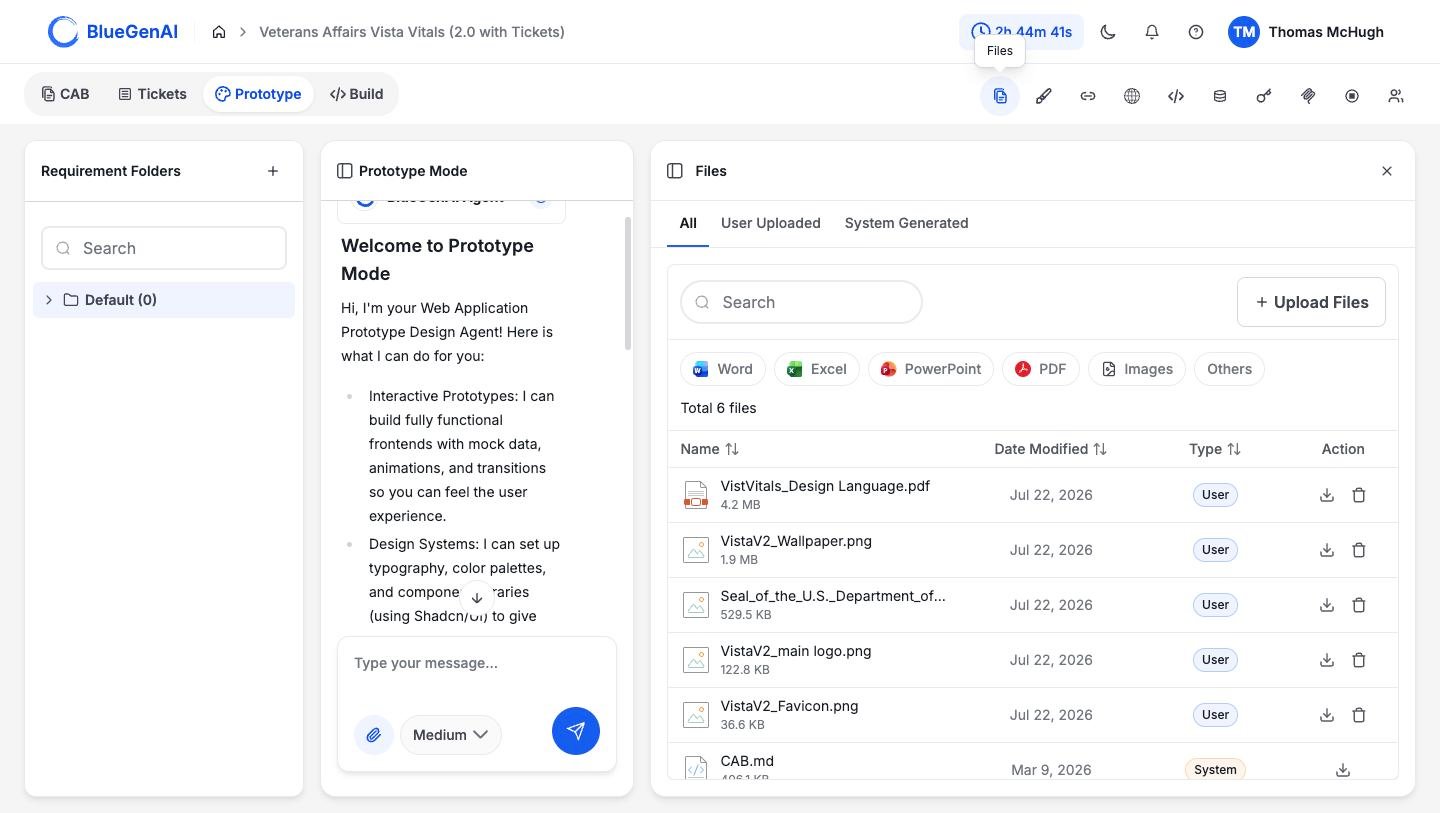
What does persist is the project itself. Files stay in the project, so anything you saved is still there when you arrive.
## Carrying Your Work Forward
When the agent produces something worth keeping, save it from the card in the conversation. Saved items land in the project's **Files**, under `System Generated`.
Save while you are still in Prototype Mode. An unsaved artifact lives in a conversation you are about to leave behind.
Use the mode tab at the top of the workspace. This is the only route.
Use the paperclip in the Build composer and attach what you saved. This is the actual handoff: the build is only as good as what you attach.
Attachments accept images and documents, including `.pdf`, `.docx`, `.md`, `.txt`, `.html`, `.json`, and `.csv`.
The agent has no memory of the conversation that produced the file, so tell it what you are handing over and what to do with it. Treat the constraints in your prototype as requirements rather than suggestions, and say so.
 ## What You Should See
The build agent's first response reflects what you attached rather than only what you typed. If it starts from a blank understanding of the application, check that the file was actually attached to the prompt.
## A Common Failure
**Iterating in Prototype Mode and expecting Build Mode to have followed along.** It has not. Twenty prompts of refinement in Prototype produce a better artifact, not a better-informed build agent. Only what you attach makes the crossing.
Settle design questions in Prototype Mode before switching. A question resolved here is a build you do not have to run twice.
## Your Next Step
With your files attached, the rest is Build Mode.
What a build request does once you submit it.
Requirement Folders, the panel rail, and the Design System.
## Related topics
- [Output Handoff](/low-code/tap/prototype-mode/output-handoff.md)
- [Troubleshooting & FAQ](/tips-and-tricks/troubleshooting-faq.md)
- [Overview](/low-code/tap/prototype-mode/overview.md)
- [Files](/web-apps/files.md)
- [TAP Overview](/low-code/tap/overview.md)
## What You Should See
The build agent's first response reflects what you attached rather than only what you typed. If it starts from a blank understanding of the application, check that the file was actually attached to the prompt.
## A Common Failure
**Iterating in Prototype Mode and expecting Build Mode to have followed along.** It has not. Twenty prompts of refinement in Prototype produce a better artifact, not a better-informed build agent. Only what you attach makes the crossing.
Settle design questions in Prototype Mode before switching. A question resolved here is a build you do not have to run twice.
## Your Next Step
With your files attached, the rest is Build Mode.
What a build request does once you submit it.
Requirement Folders, the panel rail, and the Design System.
## Related topics
- [Output Handoff](/low-code/tap/prototype-mode/output-handoff.md)
- [Troubleshooting & FAQ](/tips-and-tricks/troubleshooting-faq.md)
- [Overview](/low-code/tap/prototype-mode/overview.md)
- [Files](/web-apps/files.md)
- [TAP Overview](/low-code/tap/overview.md)