
How to invite a collaborator
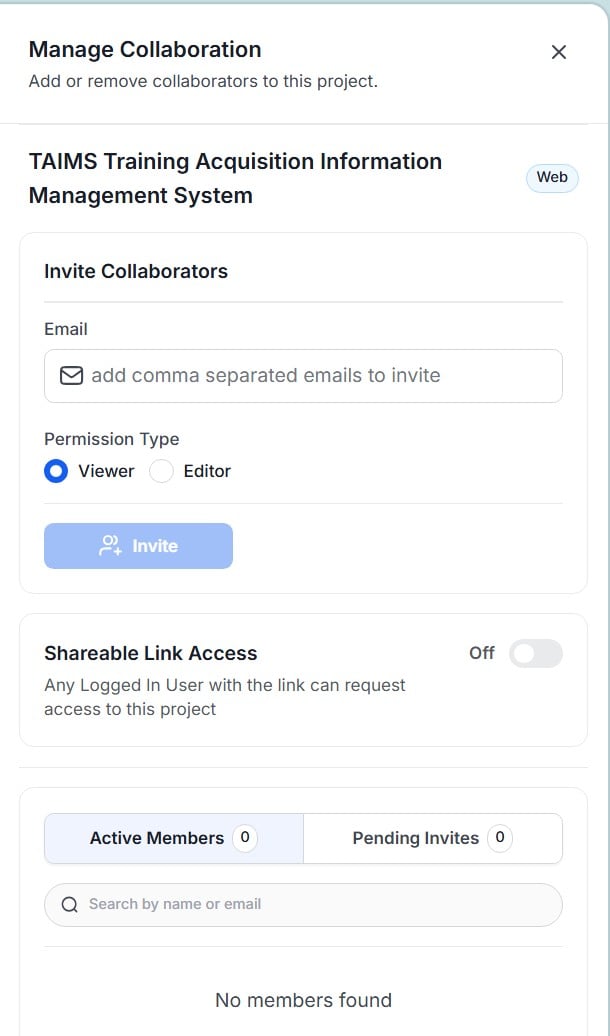
- Open your project and click the 👤 collaboration icon in the top-right corner
- The Manage Collaboration panel opens
- Enter one or more email addresses in the Email field — separate multiple addresses with commas
- Select a Permission Type — Viewer or Editor
- Click Invite
- The invitee receives a notification and appears in the Pending Invites tab
Invitees must have a BlueGenAI account. If they do not have one yet, they can sign up when they receive the invitation.
Understanding permission types
When inviting a collaborator you assign one of two permission types:The project creator is automatically the Owner. Owner permissions — including the ability to delete the project, manage collaboration settings, and configure billing — are not assignable when inviting collaborators.
How to manage active members and pending invites
The bottom section of the Manage Collaboration panel shows two tabs:
Use the Search by name or email field to find a specific member or pending invite.
How to share your project with a link
Shareable Link Access allows any logged-in BlueGenAI user with the link to request access to your project.- Open the Manage Collaboration panel
- Find the Shareable Link Access section
- Click the toggle to turn it On
- A shareable URL appears — click the copy icon to copy it
- Share the URL with anyone who needs access
- Recipients must be logged in to BlueGenAI to use the link
 When you are done sharing, return to the Manage Collaboration panel and turn the toggle Off. The link becomes inactive immediately — anyone who tries to use it will no longer be able to request access.
How real-time collaboration works
When multiple team members are working on the same project simultaneously:- All connected sessions see messages and build progress in real time
- When one collaborator sends a prompt, all connected team members see it immediately
- If one person starts a build, everyone in the project sees the progress and results
- All work is saved to the project — collaborators see the latest state whenever they open it
Related pages
Credits & Billing
Understand how credit usage is tracked across collaborators.
The Home Screen & Projects
Manage projects and access collaboration settings from the dashboard.