
The four tabs
Every project workspace has four tabs across the top. Click any tab to switch to that workspace.The CAB tab
CAB — Common Application Blueprint — is where you upload an existing system’s artifacts and generate a comprehensive architectural blueprint. It is the starting point for legacy system modernization.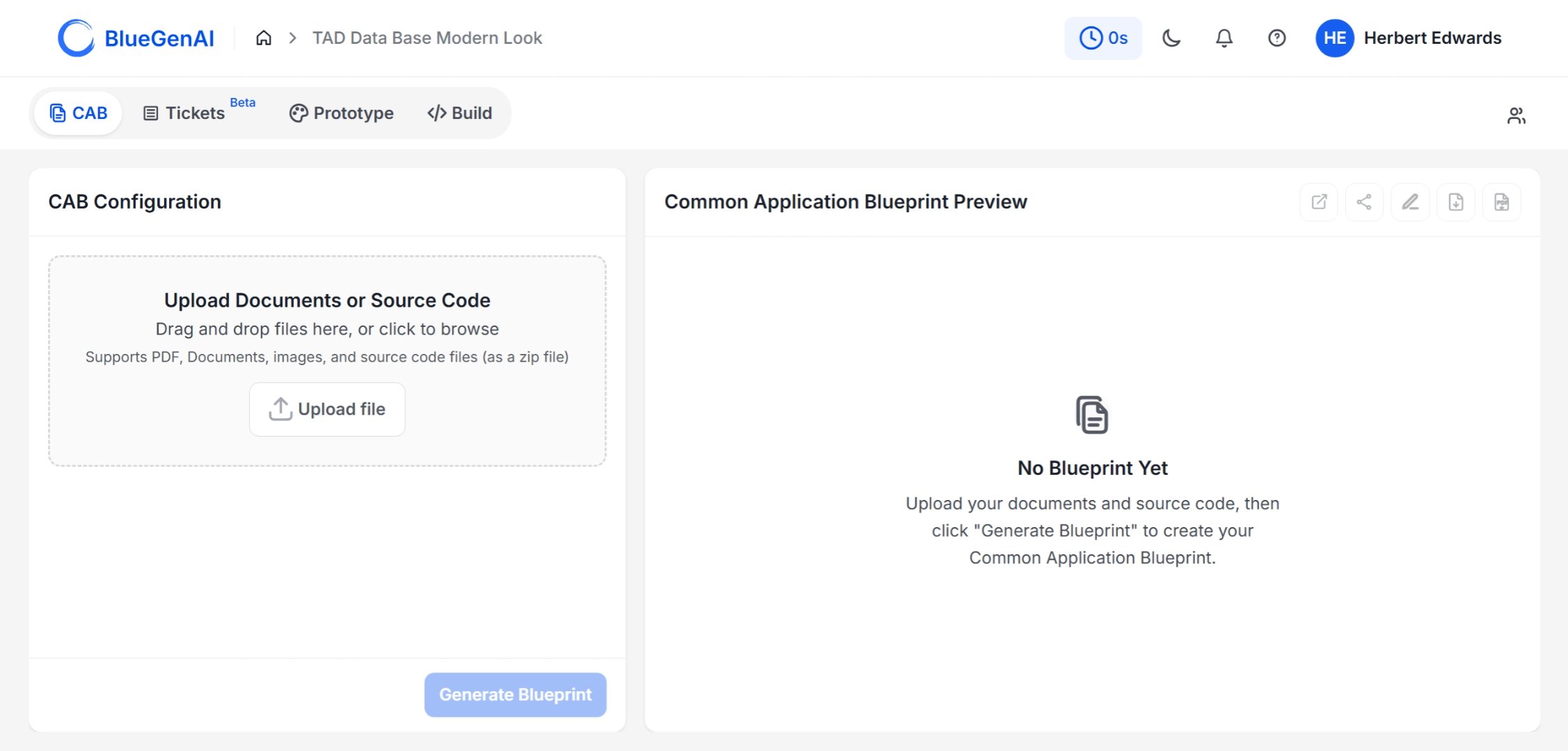
- Upload area — drag and drop files or click Upload file
- Supports PDF, documents, images, and source code files (as a ZIP)
- Displays the generated blueprint once analysis is complete
- Shows “No Blueprint Yet” until files are uploaded and Generate Blueprint is clicked
The Tickets tab
The Tickets tab is a project management workspace where tickets generated from your requirements are tracked and managed. Left panel — Views:
- All Tickets view with a count badge
- Search tickets field
- Four filter dropdowns: Status, Priority, Source, Work Type
- Ticket list area — shows “No tickets found” until tickets are generated
Tickets is currently in Beta. Tickets are generated from approved requirements and represent individual units of work — some assigned to AI, some requiring human action. Full documentation for this tab is coming soon.
The Prototype tab
The Prototype tab is where you design your application. You interact with the Web Application Prototype Design Agent through prompts to generate interactive prototypes, design systems, and visual assets.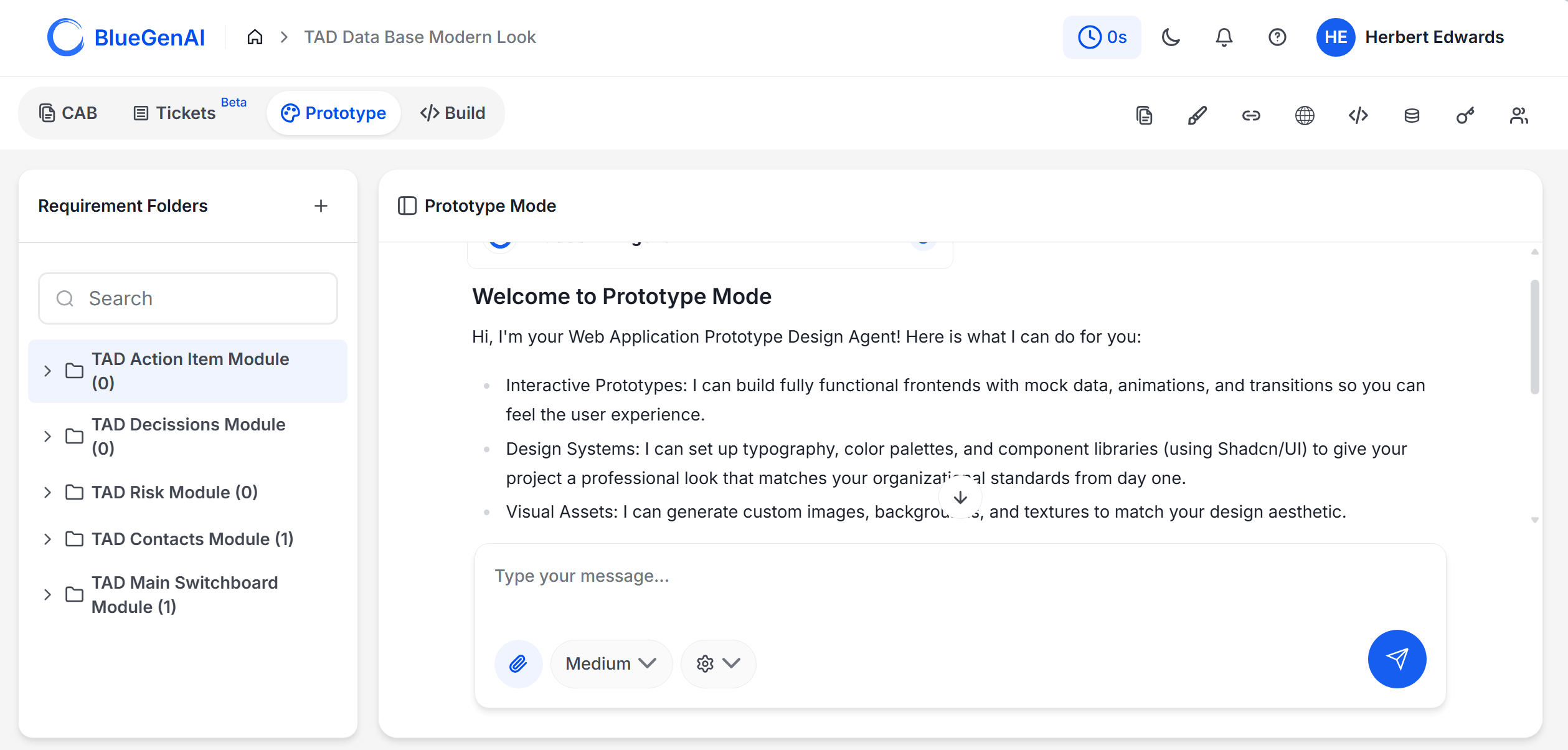
Requirement Folders panel (left)
Requirement Folders organize your design work by feature area, screen, or workflow step.- Click + to add a new folder
- Use the Search field to find folders by name
- Click any folder to work within it
- Each folder shows a count of items inside
Chat workspace (right)
- Welcome message — the Prototype Design Agent introduces itself and its capabilities when you first open the tab
- Chat history — prompts and responses appear here as you work
- Type your message — the prompt input field at the bottom
Chat input toolbar
The Build tab
The Build tab is where you generate and deploy your full-stack application. It uses the same chat interface as the Prototype tab but without the Requirement Folders panel — the full workspace is dedicated to the build conversation.
- No left panel — the entire workspace is the chat area
- The same chat input toolbar as Prototype: attachment, model selector, settings, send
- Build conversations are separate from Prototype conversations — attach your design files in your first Build prompt
The Build tab starts a fresh conversation. The agent does not automatically see your Prototype chat history. Attach your relevant design files and include key context in your first Build prompt.
The toolbar
The toolbar runs across the top right of the workspace and is available in both Prototype and Build tabs. It gives you access to project tools without leaving your current conversation.Application URLs panel
Clicking the URLs icon opens the Application URLs panel. This is where your deployed application endpoints appear after a successful build.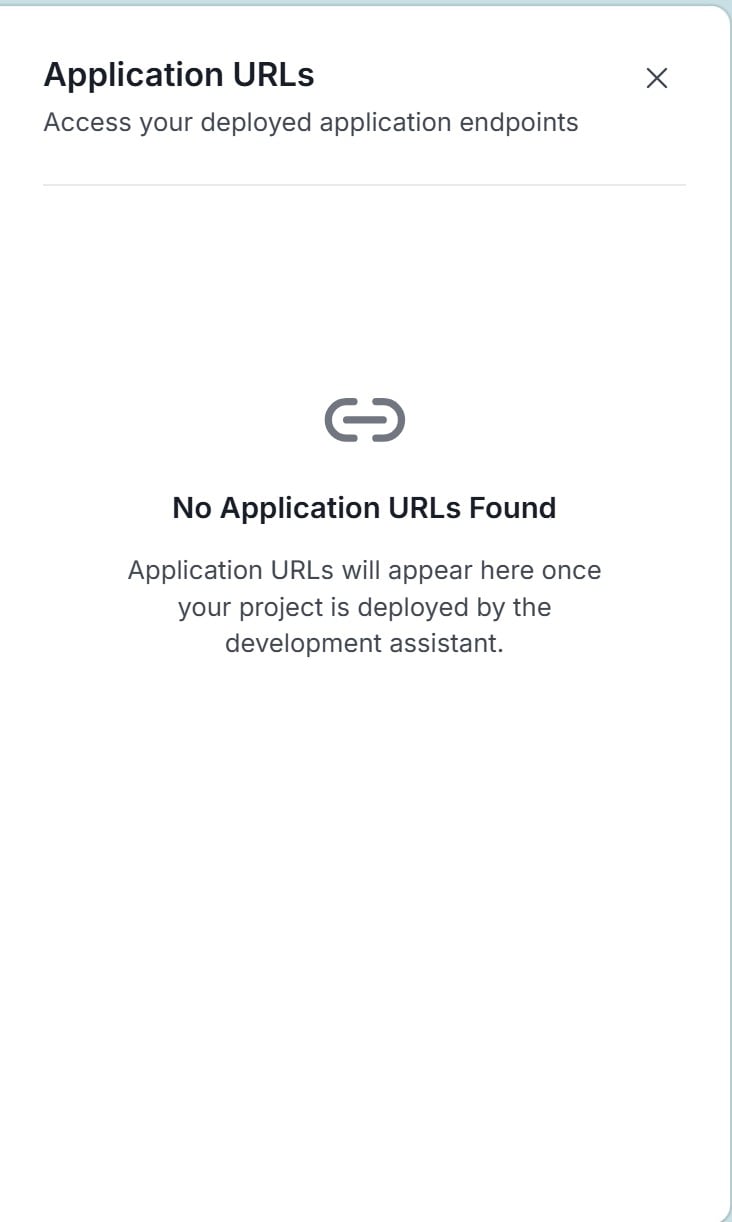
Application URLs populate automatically when your build completes. If you see “No Application URLs Found” it means no build has been deployed in this project yet.