
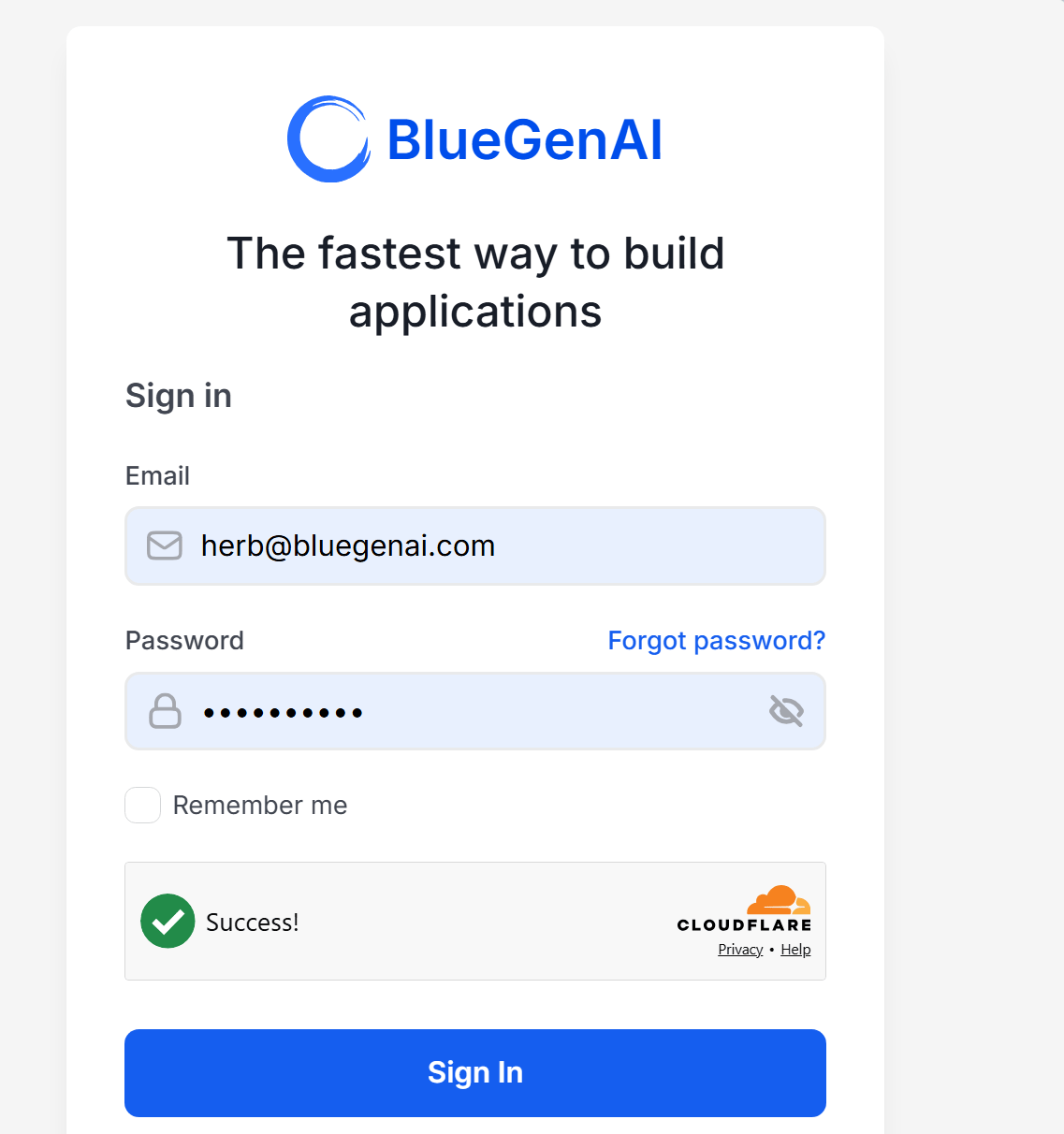
How to log in
- Go to BlueGenAI.ai
- Enter your Email address
- Enter your Password
- Optionally check Remember me to stay logged in on this device
- Complete the Cloudflare verification if prompted
- Click Sign In
How to navigate the Projects dashboard
Once logged in you land on the Projects dashboard. The dashboard is organized into three areas: the header, the filters and search bar, and the project tabs.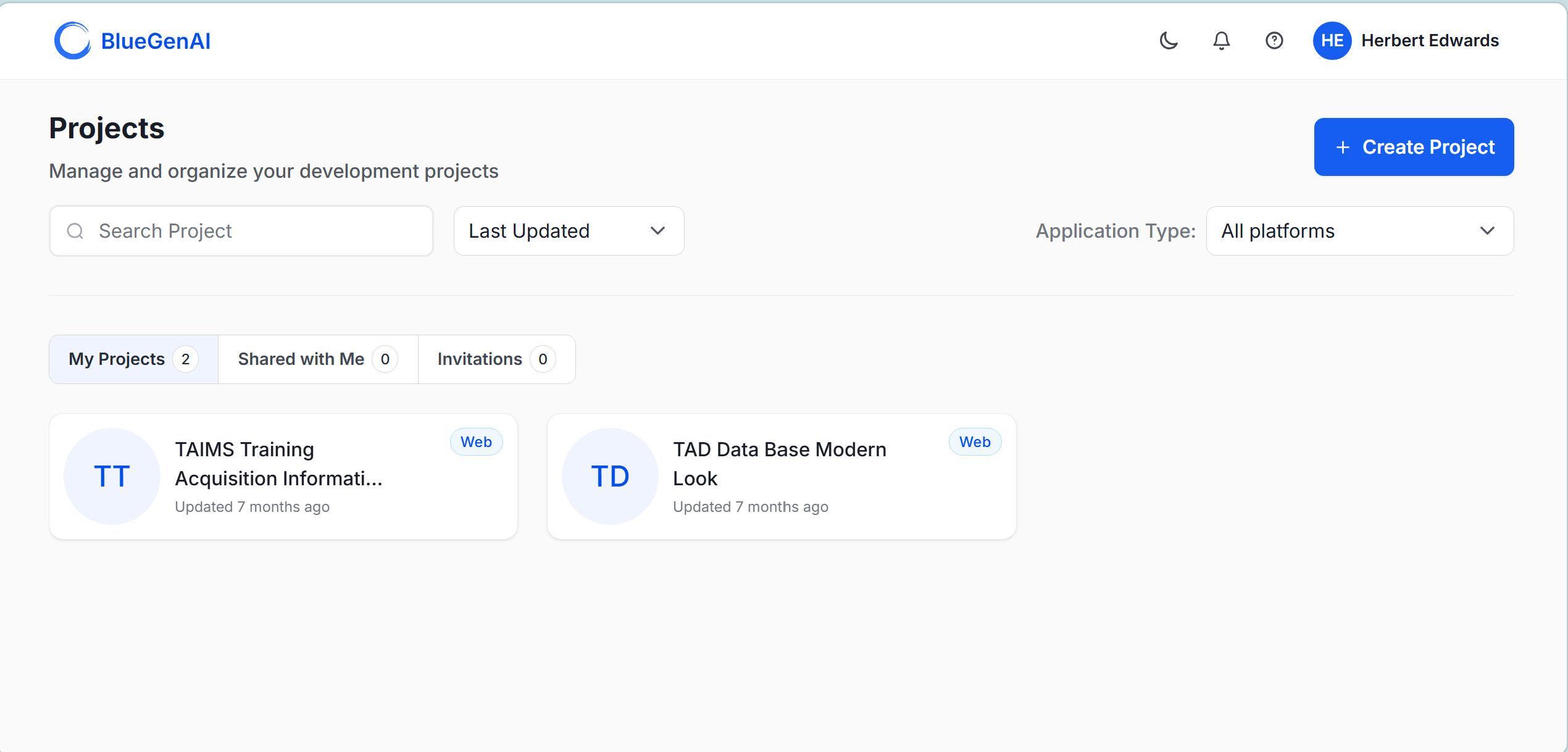
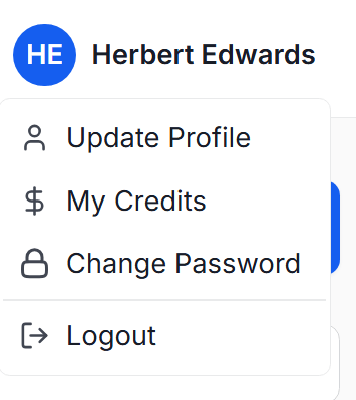
Header
Search, sort, and filter
Project tabs
Project cards
Each project appears as a card showing:- Initials avatar — auto-generated from the project name
- Project name — truncated if long
- Application type badge — Web, Low-Code, or Hybrid
- Last updated — when the project was last modified
How to create a new project
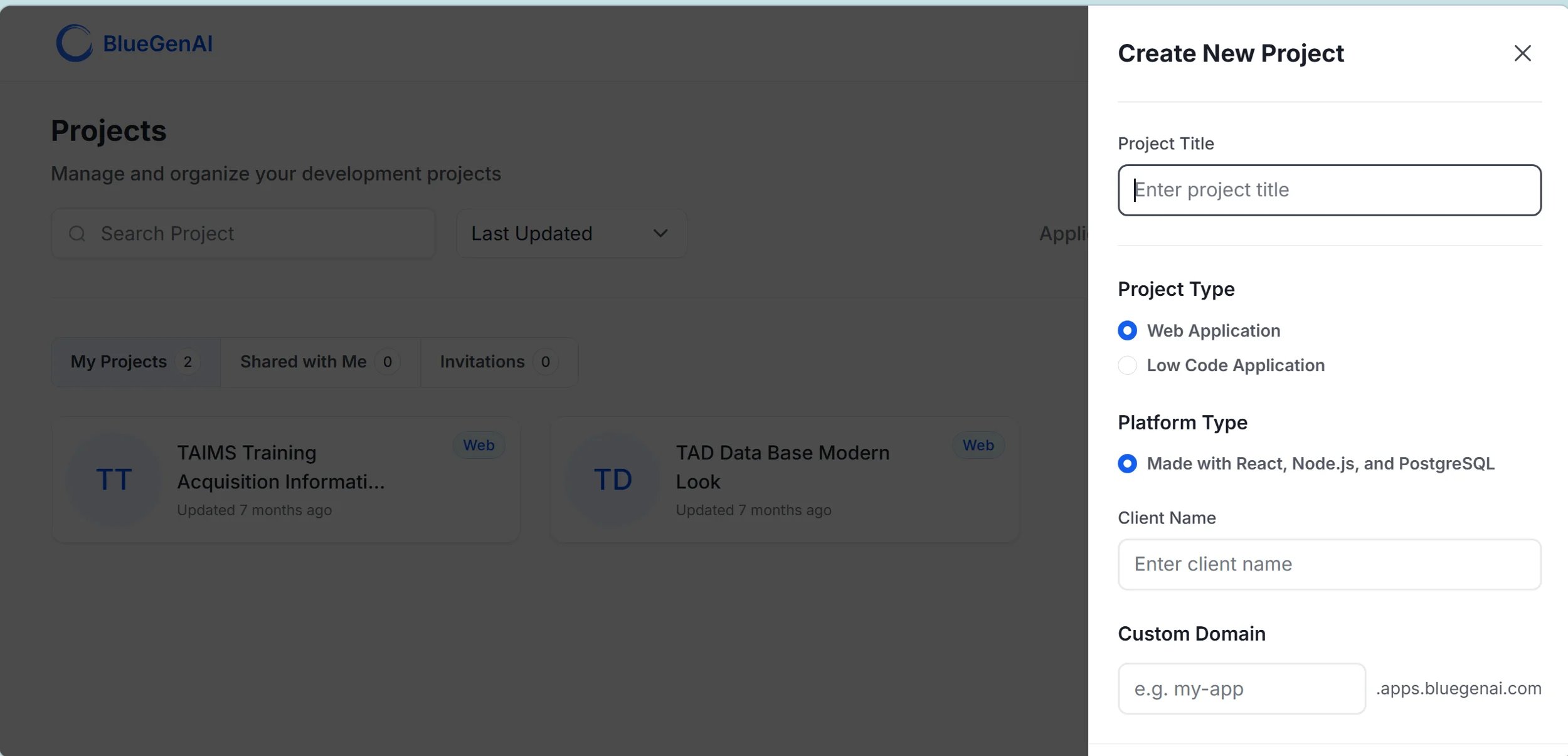
- Click the + Create Project button in the top-right corner of the dashboard
- Enter a project title — there are no restrictions on naming
- Select a Project Type — Web Application or Low Code Application
- Optionally add a client name and custom domain
- Click Create — your project opens in the workspace
How to open an existing project
- From the My Projects tab, locate the project card
- Click the card — the project opens in the mode it was last used
How to find a project shared with you
- Click the Shared with Me tab
- Projects shared by other users appear here
- Click any card to open the project — your access level depends on the role you were assigned
How to accept a project invitation
- Click the Invitations tab
- Pending invitations appear here with a count badge
- Click an invitation to review and accept or decline
How to delete a project
Only the project Owner can delete a project.- Locate the project card on the My Projects tab
- Click the more options menu (⋯) on the project card
- Select Delete Project
- Confirm the deletion
Understanding project roles
When you create a project you are automatically its Owner. When you invite others they are assigned one of three roles:
For full details on inviting collaborators and managing access see Collaboration & Sharing.
Ready to start building?
Quick Start Guide
Follow a step-by-step walkthrough to design, build, and deploy your first application.
Navigation & Interface Guide
Learn your way around the BlueGenAI workspace, toolbar, and tools.