
The Three Permission Levels
Owner is not something you may be granted. It comes from creating the project. Each project will have only one owner.
Inviting Someone
You may invite collaborators into your project from two places: From the Projects Dashboard and using the Manage Collaborations icon from the project tools rail.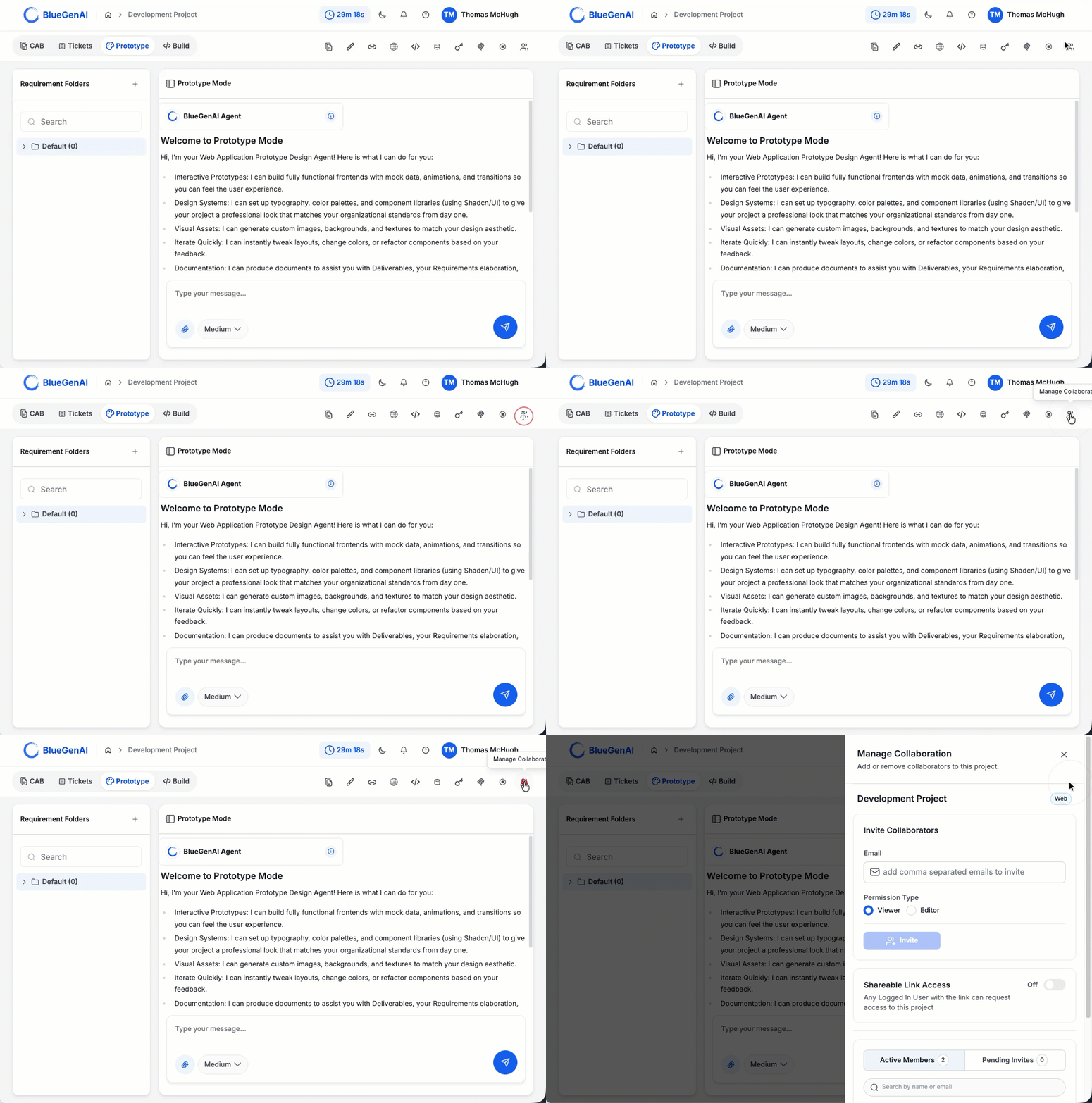
Manage Collaboration - Create an Invitation or view the members list to see who already has access
- Set the Permission Type (Viewer or Editor). This may be changed later
- Enter one or more email addresses
- Send.
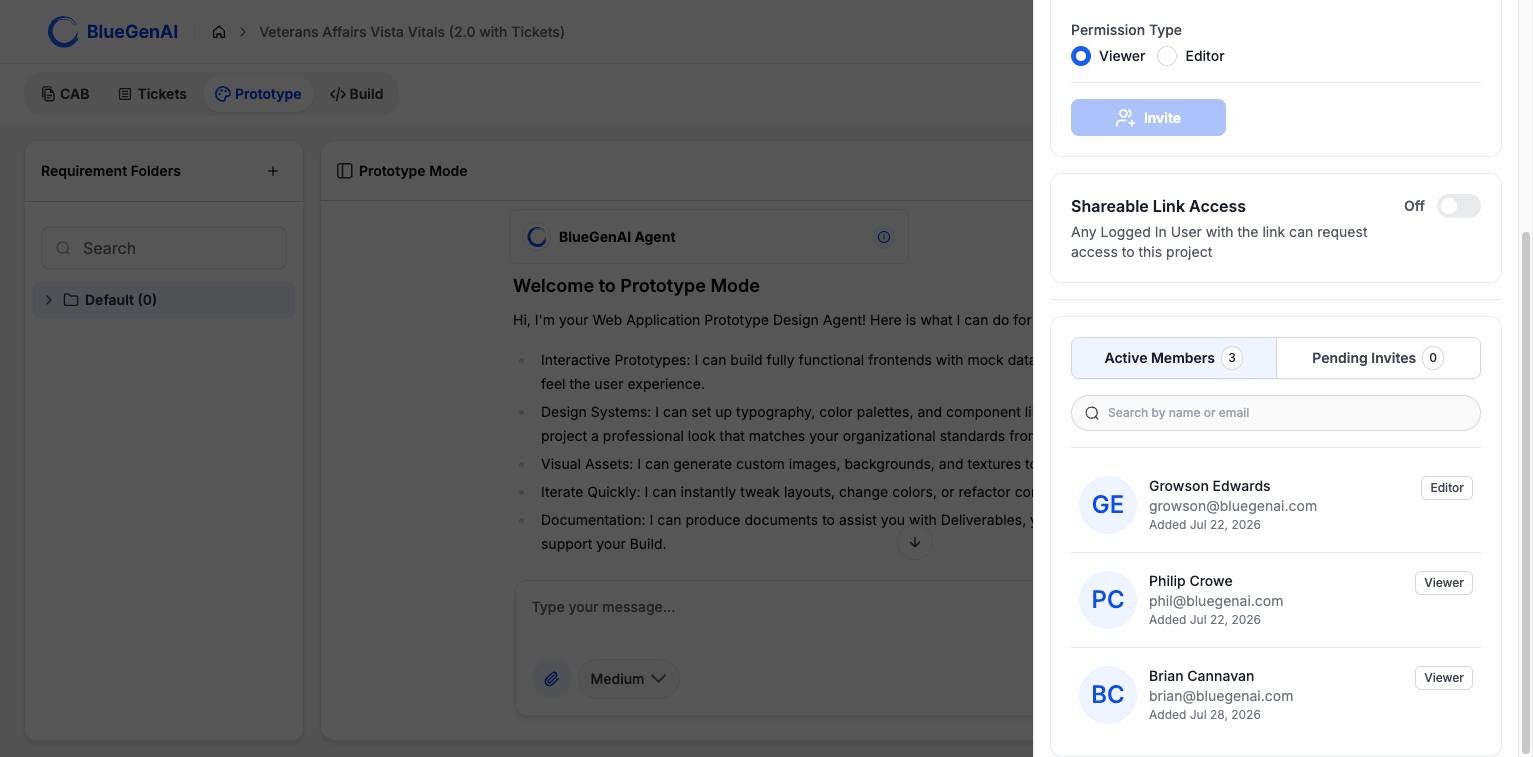
The members list separates people who have accepted from invitations still outstanding.
When setting Permission Type to Editor, you must choose a billing preference.
Selecting Owner means that the user’s actions will charge to the Project Owner.
Selecting Collaborator will charge the user’s activity to their own account’s credits.
Selecting Owner means that the user’s actions will charge to the Project Owner.
Selecting Collaborator will charge the user’s activity to their own account’s credits.
Other Types of Sharing
These are different mechanisms with different audiences, and it is worth not confusing them. Shareable Link Access is an additional toggle in the collaboration drawer. It creates a special invitation URL lets ANY user of the platform who has an account, is signed in, and has the link request access to the project. It does not immediately grant access; someone still approves the request. Read-only share links are available for the CAB. Anyone with the link can open the generated CAB without signing in at all. Nothing else in the project becomes visible and nothing is editable.What’s the Difference
Permissions are checked wherever an action would alter the project. A Viewer can open the workspace, read the CAB, and look at Tickets, but the controls that change things are unavailable to them. Read-only questions are treated separately from changes, so a collaborator may be able to ask the agent about a codebase on a project where they cannot build.Your Next Step
Start a project
Requirements to deployed application, in one pass.
Find your way around
The dashboard, the workspaces, and the four modes.