
Turning It On and Off
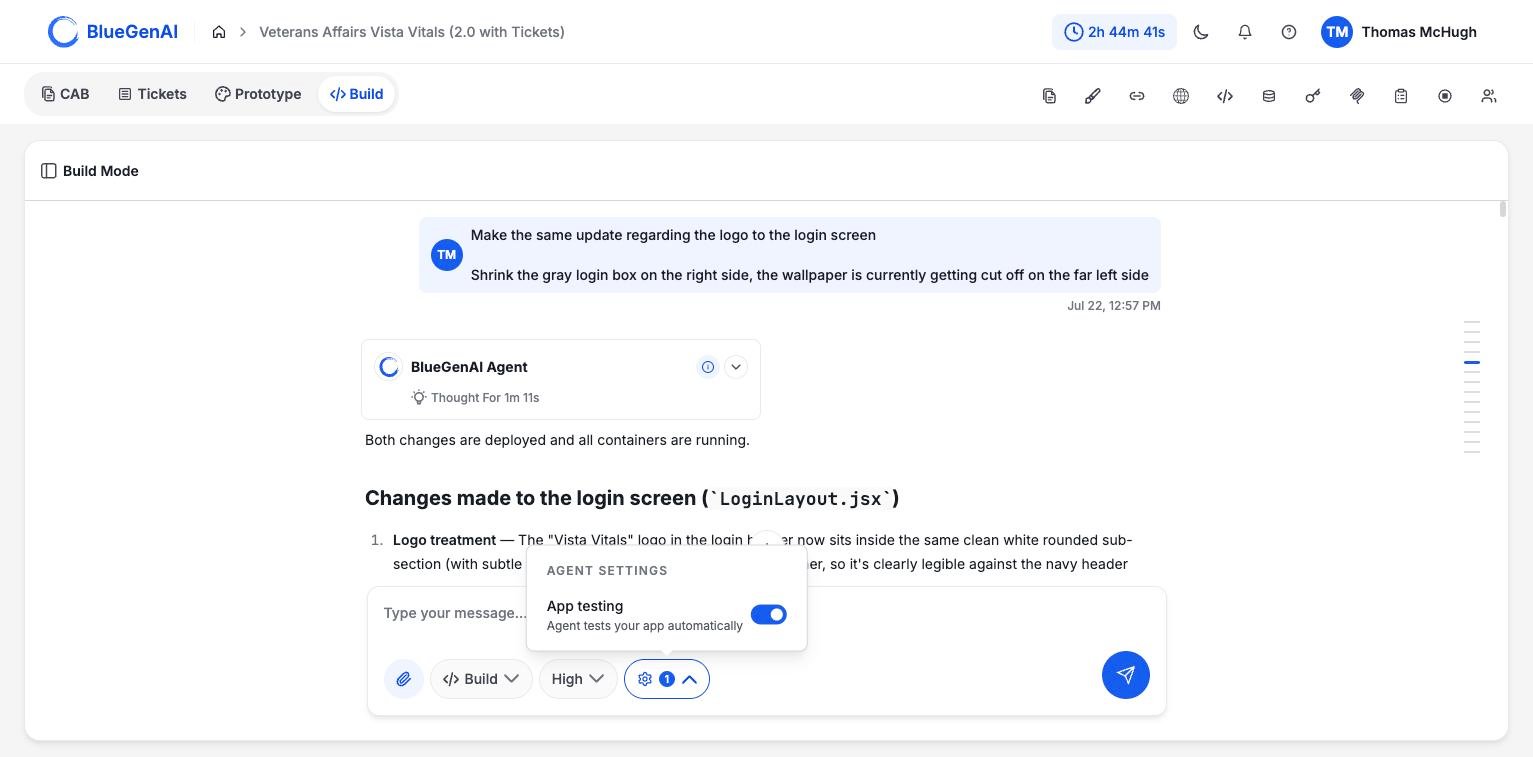
Agent settings holds one toggle. The badge counts settings that are on.
1.
Testing Context
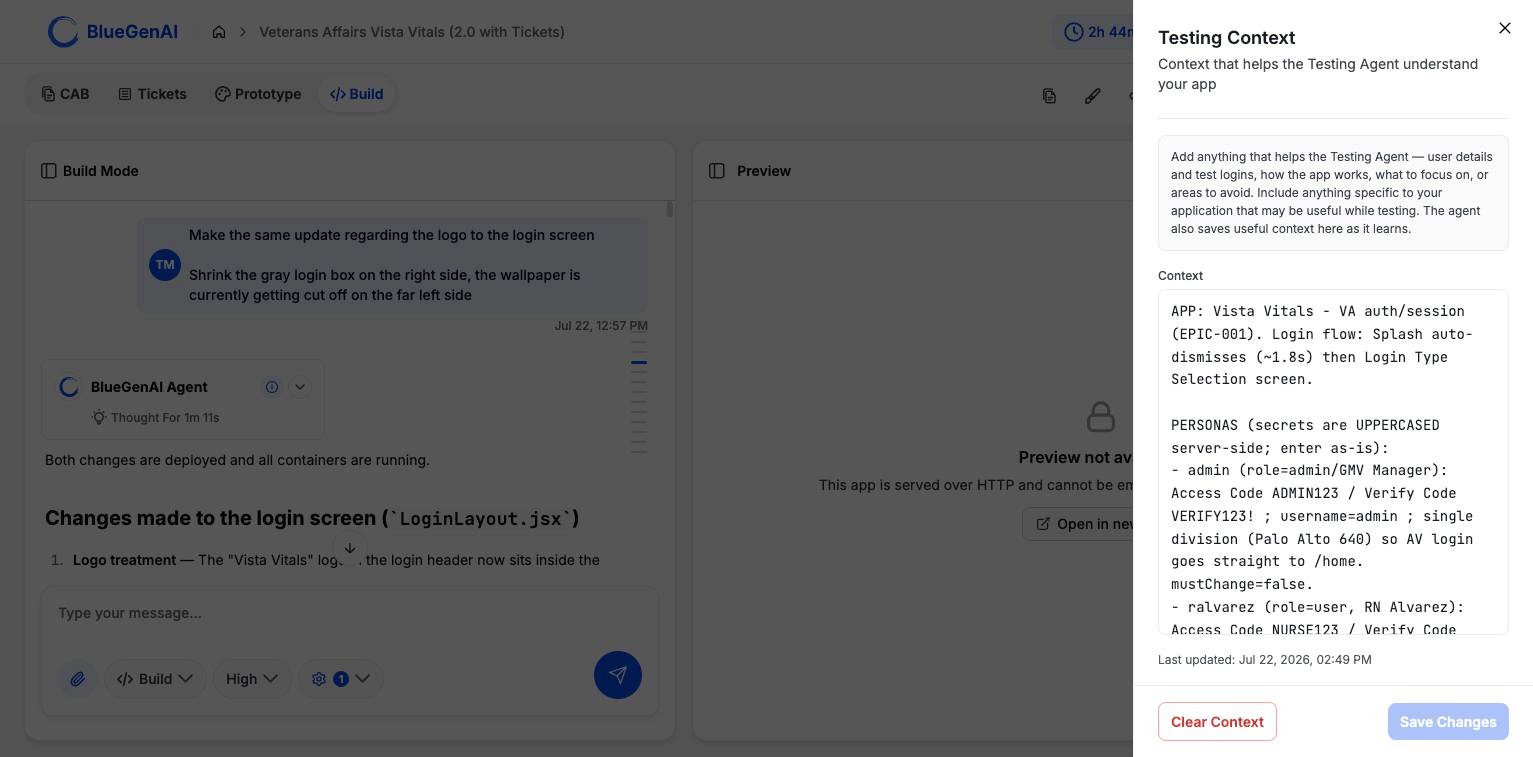
Testing Context. The agent writes here as well as reading from it.
What the Testing Agent Can Do
The agent that tests your application is a separate one, and it is deliberately confined. It gets browser controls only: no access to your files, no ability to run commands, no access to the web. It can look at your running application and interact with it, and nothing else. Within the browser it can navigate, click, fill single fields and whole forms, type, hover, press keys, drag, upload a file, handle pop-up dialogs, resize the window, and wait for the page to settle. It can also read the browser’s error log and network activity, which is how it notices a failure the page does not show. It cannot open new tabs or take screenshots. Both are handled outside it.How a Test Run Works
The agent writes its own test scenarios, each a complete user journey starting from navigation. Every scenario runs in a fresh browser session, so one cannot leave state behind that affects another. Only the pass or fail summary comes back into your conversation. The clicking and reading happens inside the testing agent, which keeps a long test run from flooding your chat. A build can run at most five test rounds. That is a cap on repeated attempts within one request, not a limit on how often you can ask for testing.What You Should See
The agent reports which scenarios passed and which failed, and generally attempts a fix for failures before finishing the turn. If everything fails at the same point, check Testing Context first. A missing or stale test login is the usual cause.Your Next Step
Testing is the last step of a build. What happens before it is worth understanding too.See what the build agent does
Its capabilities, its rules, and the boundaries around them.
Open your running application
Where your application lives and how to start it.